
First run
The first time you open Matinee (http://<your server>:7171), it asks you to create the admin account. The admin can change settings, add libraries and invite everyone else.
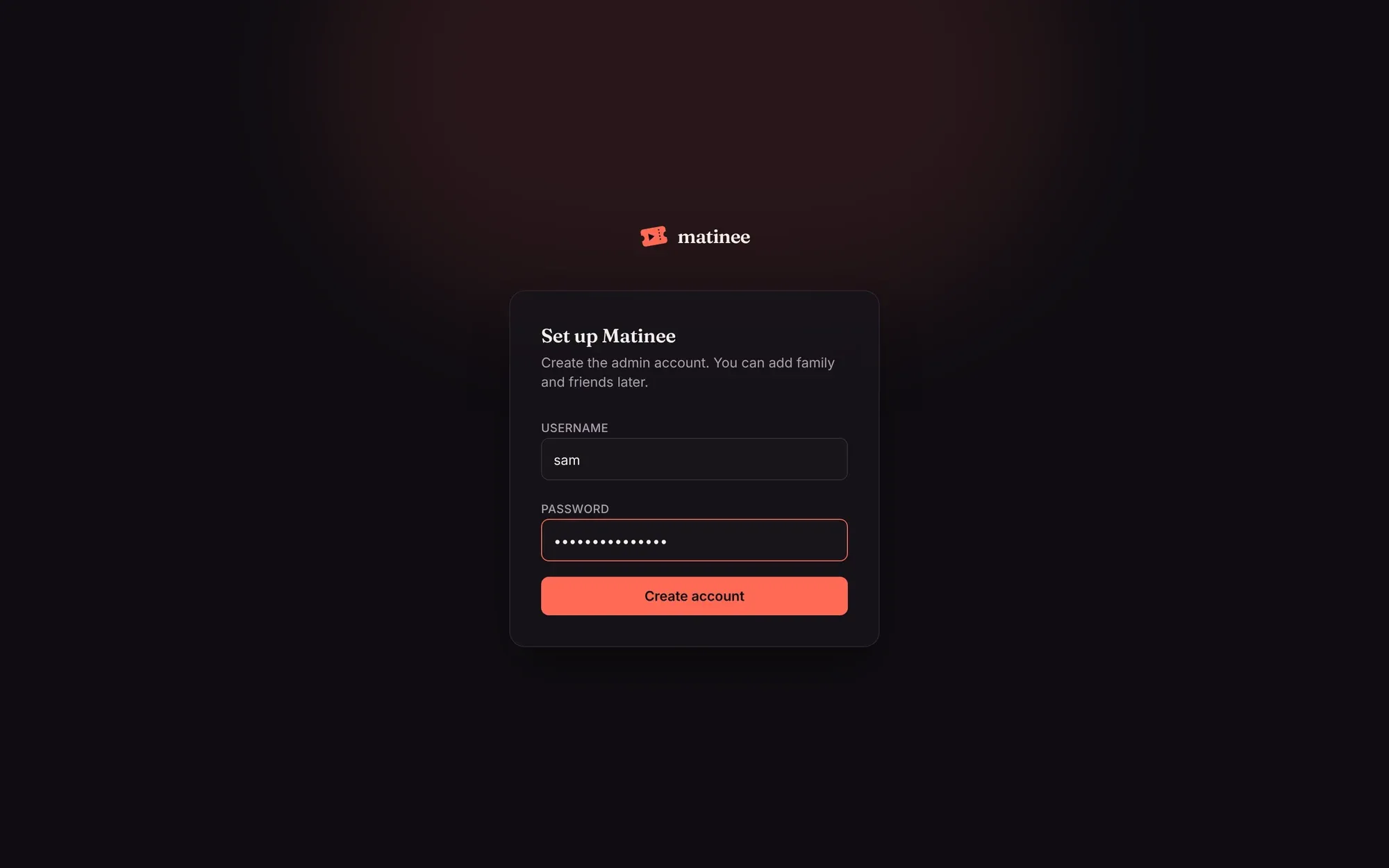
Pick a username and a password of at least 8 characters, then Create account. You’re signed in straight away.
Add your libraries
Section titled “Add your libraries”A library is a set of folders holding one kind of media: movies, TV shows or music. Most people have three, one of each.
- Open Settings (the gear at the top right) and find Libraries.
- Click Add library and pick the type.
- Give it a name, or keep the suggested one. This is the name in the top bar.
- Browse to a folder and click Use this folder. A library can have several folders, for example movies on two disks; add each one.
- Click Add library.

The folder picker shows folders on the server, not on the computer you’re using, since that’s where Matinee reads your media. It opens in the folder set by MATINEE_MEDIA_ROOT (/media in the Docker image).
Matinee takes it from there
Section titled “Matinee takes it from there”As soon as a library is added, Matinee:
- Scans the folders and names each movie, show, season, episode, artist and album from the folder and file names. Organizing your media explains what it expects.
- Looks up artwork and details (posters, backdrops, descriptions, cast, crew, age ratings) on TMDB, if the server has a TMDB key. Artwork files next to your media always win.
- Starts watching the folders, so files you add later show up by themselves within seconds. See New files.
- Analyzes each file slowly in the background for its resolution, HDR, audio and subtitles. See Media analysis.
A movie shows up a few seconds after its folder is scanned, and its artwork follows shortly after. A big library takes a while to look up the first time; you can start watching right away.
Next steps
Section titled “Next steps”- Invite your household and set up profiles.
- Get the phone and TV apps. On your home network they find the server by themselves.
- Decide whether to reach Matinee away from home.