
Themes
Matinee has seven built-in themes. Everyone picks their own under Settings → Appearance, and their pick follows them to the phone and TV apps.
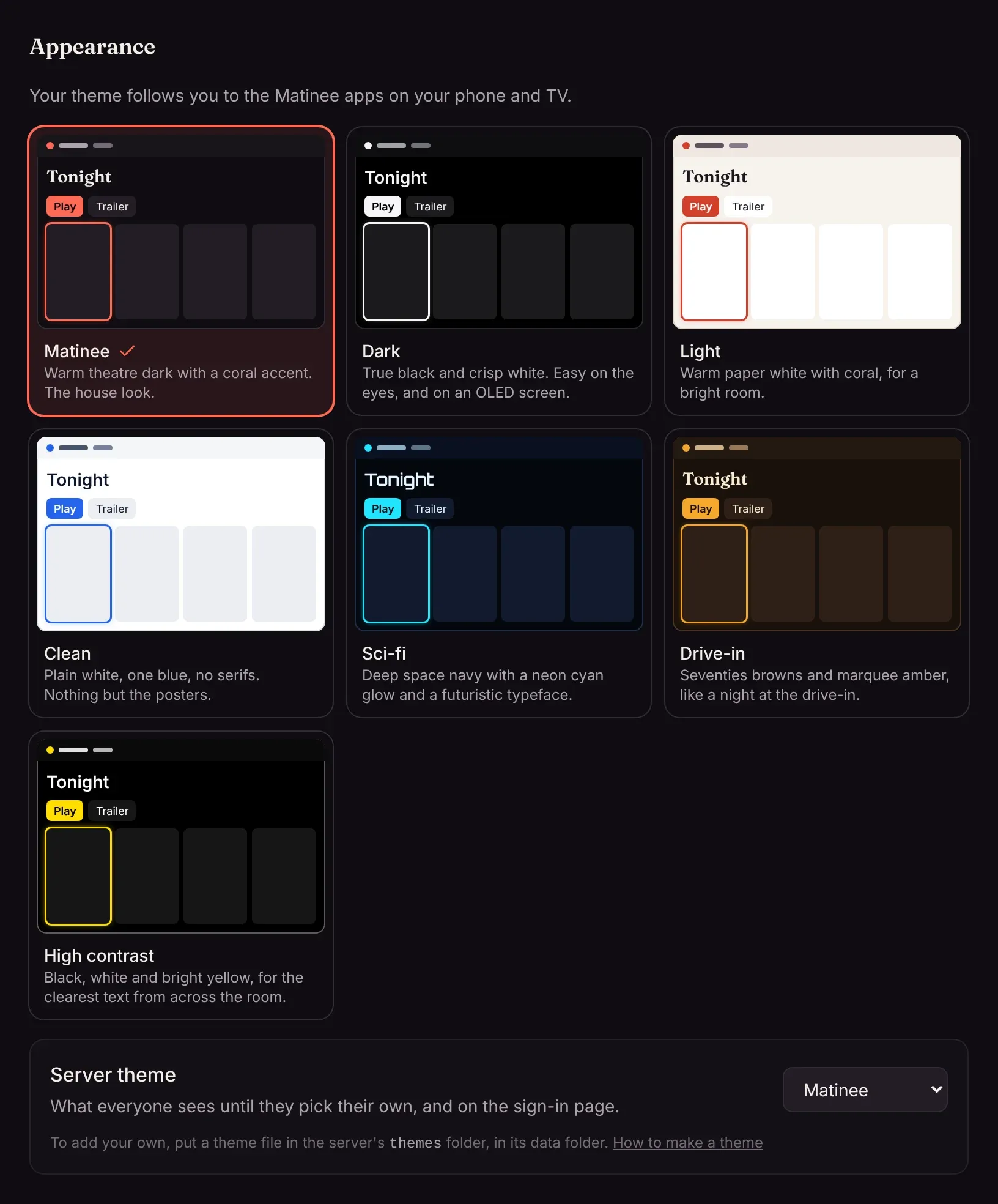
| Theme | Look |
|---|---|
| Matinee | Warm theatre dark with a coral accent. The default. |
| Dark | True black and crisp white, easy on an OLED screen. |
| Light | Warm paper white with coral, for a bright room. |
| Clean | Plain white, one blue, no serifs. |
| Sci-fi | Deep space navy, neon cyan glow, Orbitron headings. |
| Drive-in | Seventies browns and marquee amber. |
| High contrast | Black, white and bright yellow, for the clearest text. |
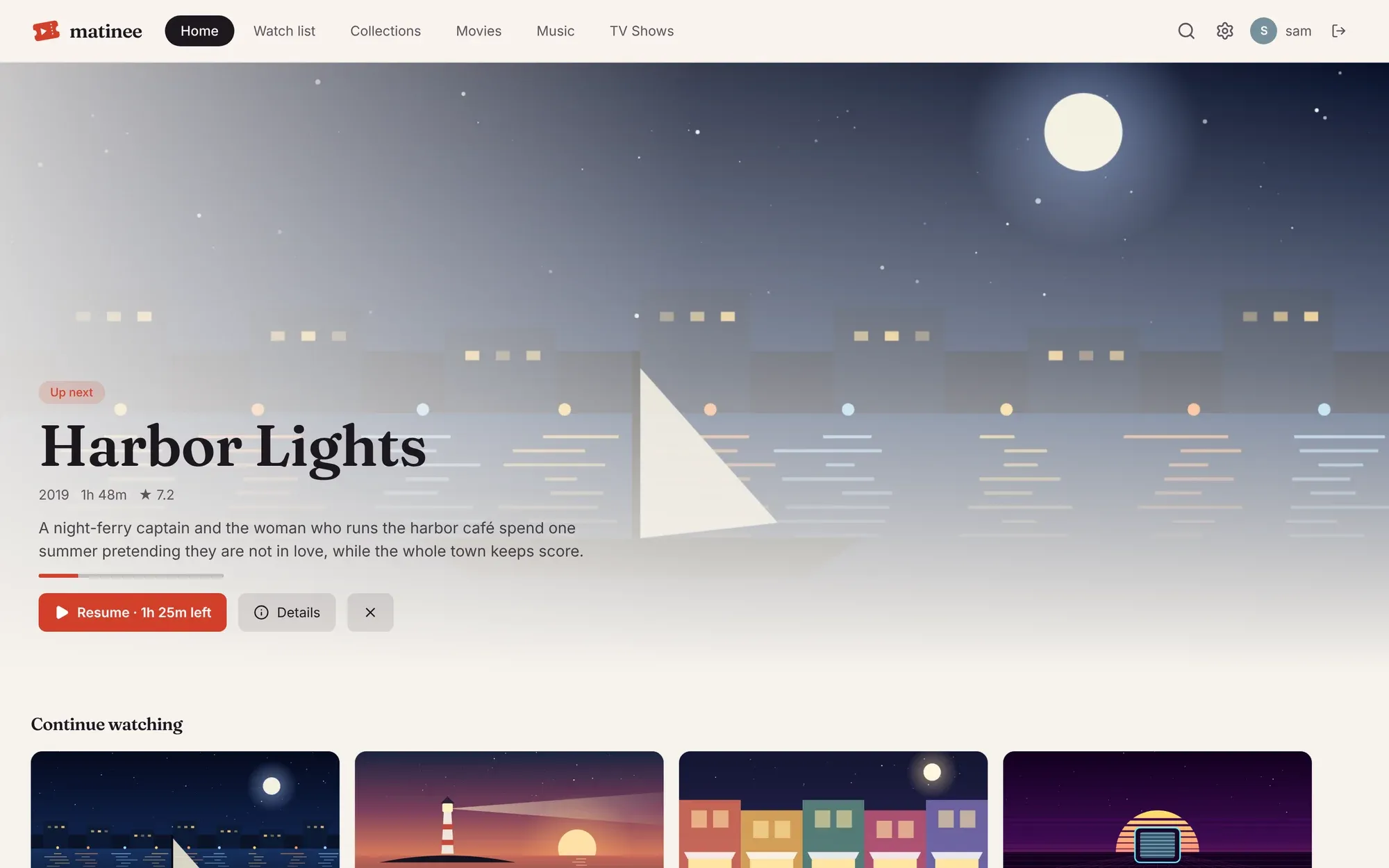
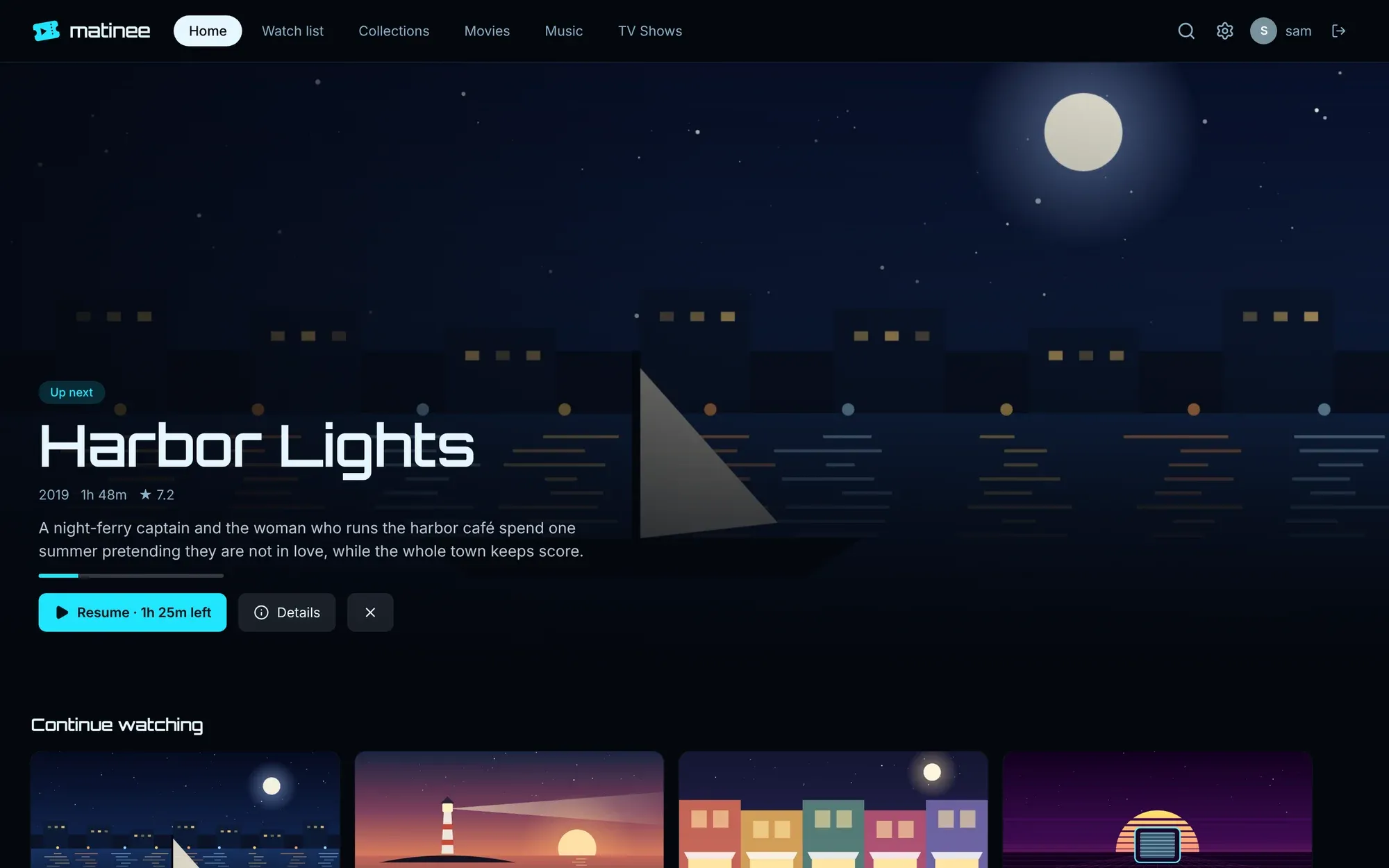
The server theme
Section titled “The server theme”An admin also picks the Server theme: what people see until they choose their own, and on the sign-in page.
Add your own theme
Section titled “Add your own theme”A theme is a small JSON file of colors and font names. It holds no code, so it’s safe to share and to install from someone else.
-
Make a
themesfolder in the server’s data folder (/data/themesin Docker). -
Save a theme file in it, such as
themes/mint.json:{"id": "mint","name": "Mint","description": "Cool green on near-black.","scheme": "dark","fonts": { "display": "inter", "body": "inter" },"colors": {"ink": "#0b1210","surface": "#101a17","raised": "#18241f","line": "#25352f","text": "#eafff6","muted": "#9cc4b4","faint": "#6c8e81","accent": "#3ddc97"}} -
Open Settings → Appearance. The new theme is there straight away; the apps pick it up the next time they open.
If a file has a mistake, admins see it under Server theme. Every field is described in the theme file reference.