
Radarr and Sonarr
If you use Radarr for movies or Sonarr for TV, Matinee can work with them. People ask for titles from Matinee, see what’s on its way, and report bad files, and Radarr and Sonarr do the downloading.
Connecting
Section titled “Connecting”- Open Settings → Radarr and Sonarr and click Connect next to Radarr (or Sonarr).
- Enter its address, such as
http://radarr:7878, and its API key. You’ll find the key in Radarr or Sonarr under Settings → General. - Click Test, then pick the quality profile and root folder that new titles get, and Save.
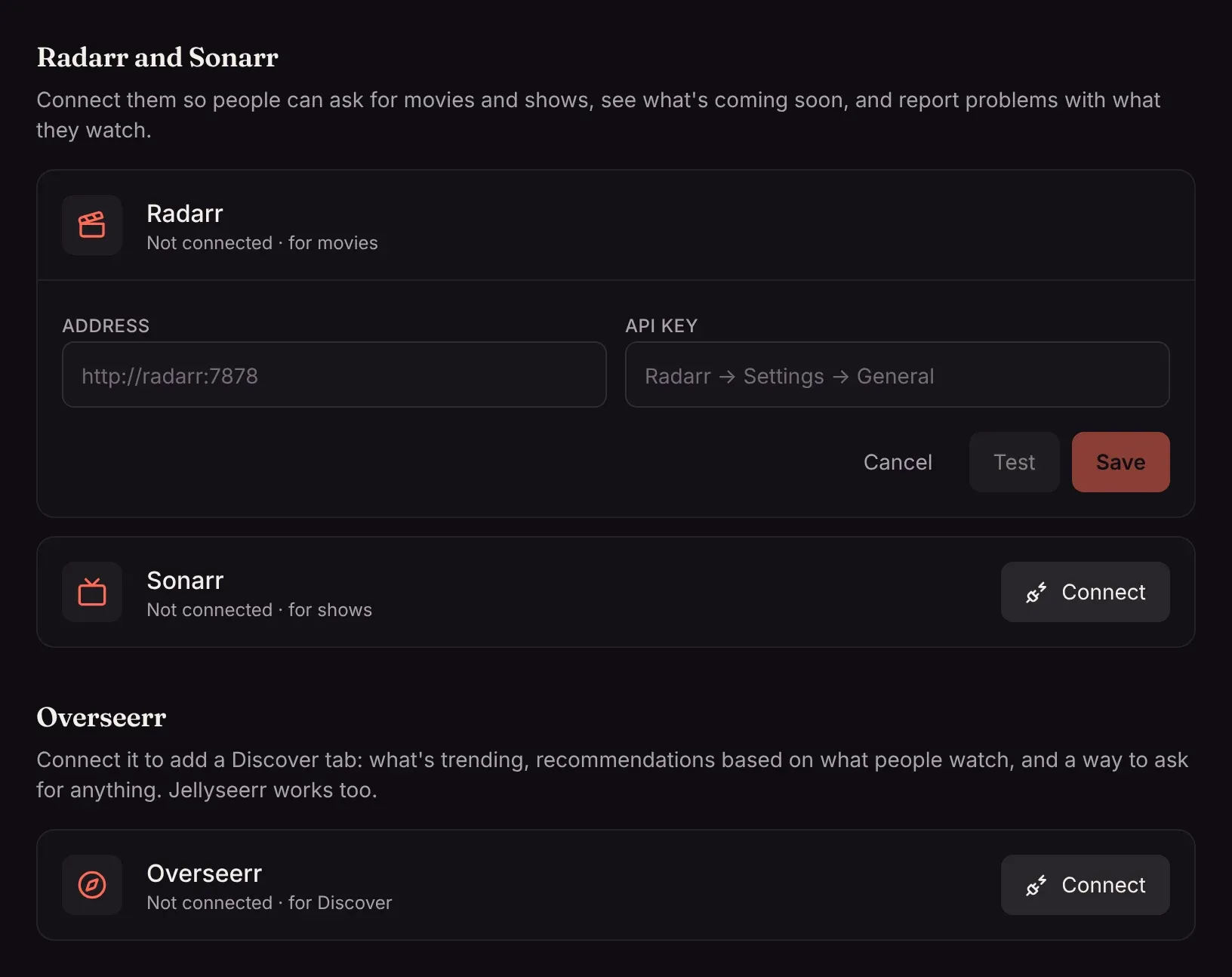
The address and key stay on the server; nobody’s browser or app ever sees them.
Who can add titles
Section titled “Who can add titles”Under Who can add movies and shows, pick one:
| Choice | What happens |
|---|---|
| Ask, then an admin approves (the default) | Anyone with an account can ask for a title. It waits for an admin. |
| Add right away | What people ask for goes straight to Radarr or Sonarr. |
| Only admins add titles | Everyone else can still see what’s coming soon and report problems. |
Requests
Section titled “Requests”Requests (the inbox icon in the top bar) has up to three tabs:
- Ask for something: search for any movie or show and ask for it (or Add it, when requests are added right away).
- Requests: admins see everyone’s requests here and Approve or Decline them. Everyone else sees Your requests and where each one is up to.
- Problems: reports from Report a problem on a title’s page. An admin can Close one once it’s sorted, or click Replace file, which deletes the file in Radarr or Sonarr and has it download another copy. Everyone else sees Your reports.
Coming soon
Section titled “Coming soon”Coming soon (the calendar icon) lists new episodes and movie releases due in the next two months that aren’t in your library yet. The same titles appear in a row on Home.
Changing quality
Section titled “Changing quality”On a movie or show’s page, admins can change the quality profile Radarr or Sonarr uses for it, for example to upgrade a favorite to 4K.