
Profiles and kids mode
A profile is a person on a shared sign-in: one account (or the Home account on your network), several people, each with their own place in every show, their own watch list and their own theme. When an account has profiles, Matinee asks Who’s watching? when it opens.
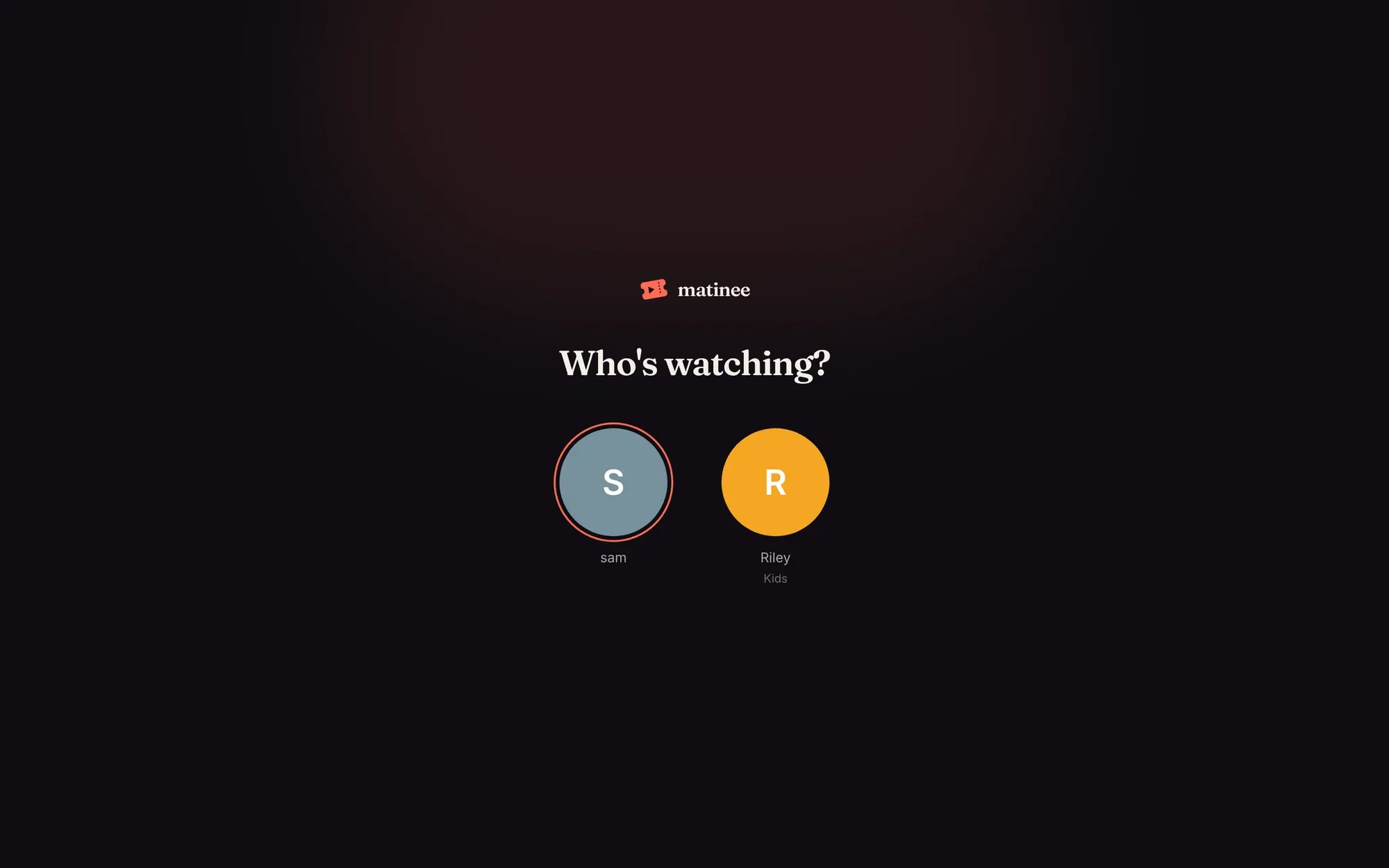
Add a profile
Section titled “Add a profile”Admins manage profiles under Settings → Profiles. Every account is listed, plus Home for devices on your home network that haven’t signed in.
- Click Add profile under the account it belongs to.
- Type a name and pick a color.
- Add a 4-digit PIN if you want to keep the profile to its owner.
- For a child, pick a Kids mode level (below).
- Click Add profile.

Switch profiles any time from the avatar at the top right, or from the profile picker in the apps.
Kids mode
Section titled “Kids mode”A kids profile only sees titles rated for its age, in the libraries you choose:
| Level | Sees (US ratings) |
|---|---|
| Little kids | G, TV-Y, TV-G |
| Kids | PG, TV-Y7, TV-PG and younger |
| Teens | PG-13, TV-14 and younger |
For each library, pick By rating (only titles at or below the level, and nothing without a rating), Everything, or Hidden. A kids profile can’t open Settings, ask for titles, or report problems.
Ratings come from TMDB for your country. Set MATINEE_RATING_COUNTRY to use your country’s ratings instead of the US ones: see Posters and details.
A PIN on a profile stops others from picking it. To stop a child switching back to the grown-up profile, put a PIN on the account itself too, with Add PIN next to the account. After five wrong tries, the profile locks for a minute.

Profiles at home
Section titled “Profiles at home”The Home account, used by devices on your network that haven’t signed in, can have profiles too. That way the living-room TV can ask Who’s watching? without anyone signing in.