
Hardware transcoding
When a device can’t play a file as it is, Matinee converts it while you watch. A GPU makes that much faster and lighter on the server: a 4K HEVC film becomes 1080p H.264 without keeping the CPU busy.
At startup Matinee tests what the machine’s FFmpeg can use, with a one-second test encode, and picks the best that works:
| Hardware | Backend |
|---|---|
| NVIDIA | NVENC to encode, NVDEC to decode |
| AMD or Intel on Linux | VAAPI |
| Intel | Quick Sync |
| Mac | VideoToolbox |
| AMD on Windows | AMF |
| Raspberry Pi and other ARM boards | V4L2 |
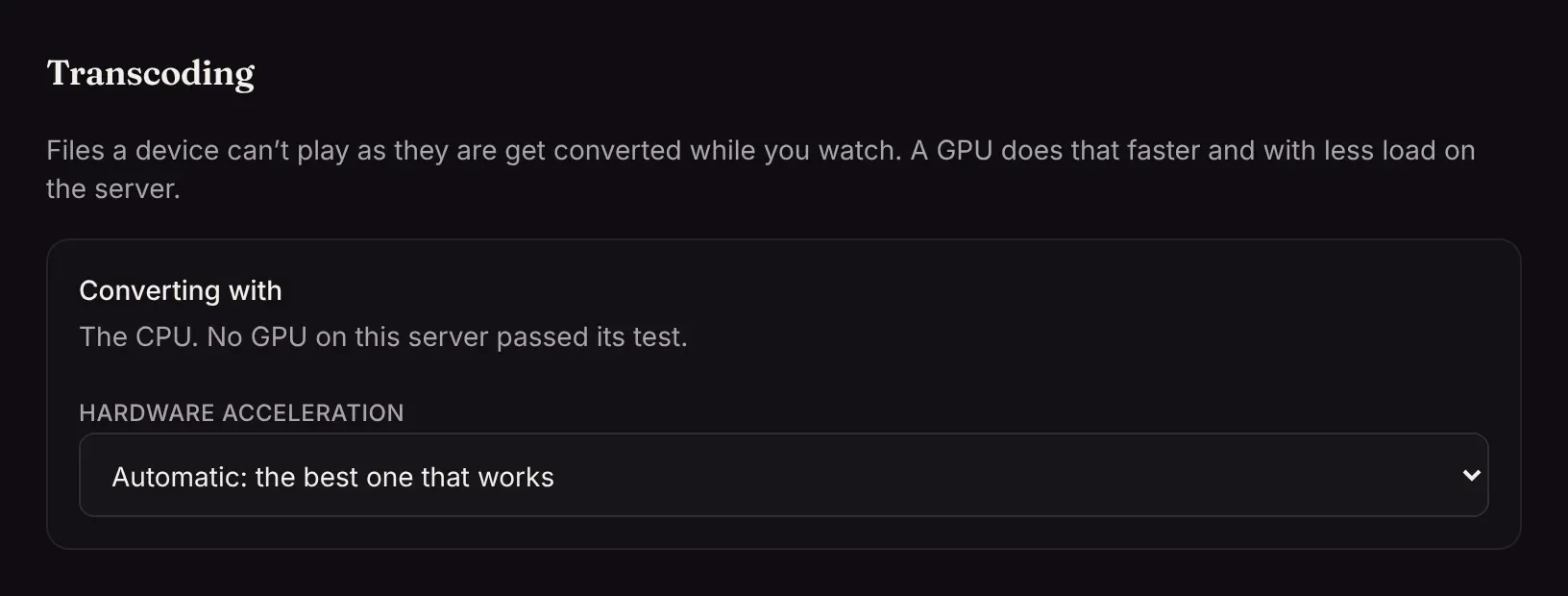
Settings → Transcoding shows which one is in use, and lets an admin pick another or turn it off.
If the GPU can’t handle a file (an old codec, a profile it doesn’t decode), that playback starts again on the CPU, and the file keeps using the CPU from then on, so nobody sees an error.
Giving Matinee a GPU
Section titled “Giving Matinee a GPU”Docker: pass /dev/dri in for AMD and Intel, and add the group that owns it on the host:
services: matinee: image: ghcr.io/yeixio/matinee:latest devices: - /dev/dri:/dev/dri group_add: - "993" # the render group's number on the host: getent group renderFor NVIDIA, install the NVIDIA Container Toolkit on the host and request a GPU (--gpus all, or a deploy.resources reservation in Compose; the docker-compose.yml has both examples). The image includes FFmpeg with every Linux backend and the AMD and Intel drivers.
Kubernetes: set gpu.type to vaapi or nvidia, and nodeSelector to keep Matinee on the node with the GPU. For VAAPI, list the node’s render group in gpu.vaapi.groups; if it’s wrong, Settings → Transcoding says which number it needs. See gpu: in the chart’s values.yaml.
Packages: Matinee uses the system’s FFmpeg and drivers, and its user is already in the render and video groups.
On a machine with several GPUs, MATINEE_VAAPI_DEVICE picks one for VAAPI, such as /dev/dri/renderD129.