
Browsing, filters and search
Each library has its own page in the top bar: Movies, TV Shows, Music, or whatever you named them.
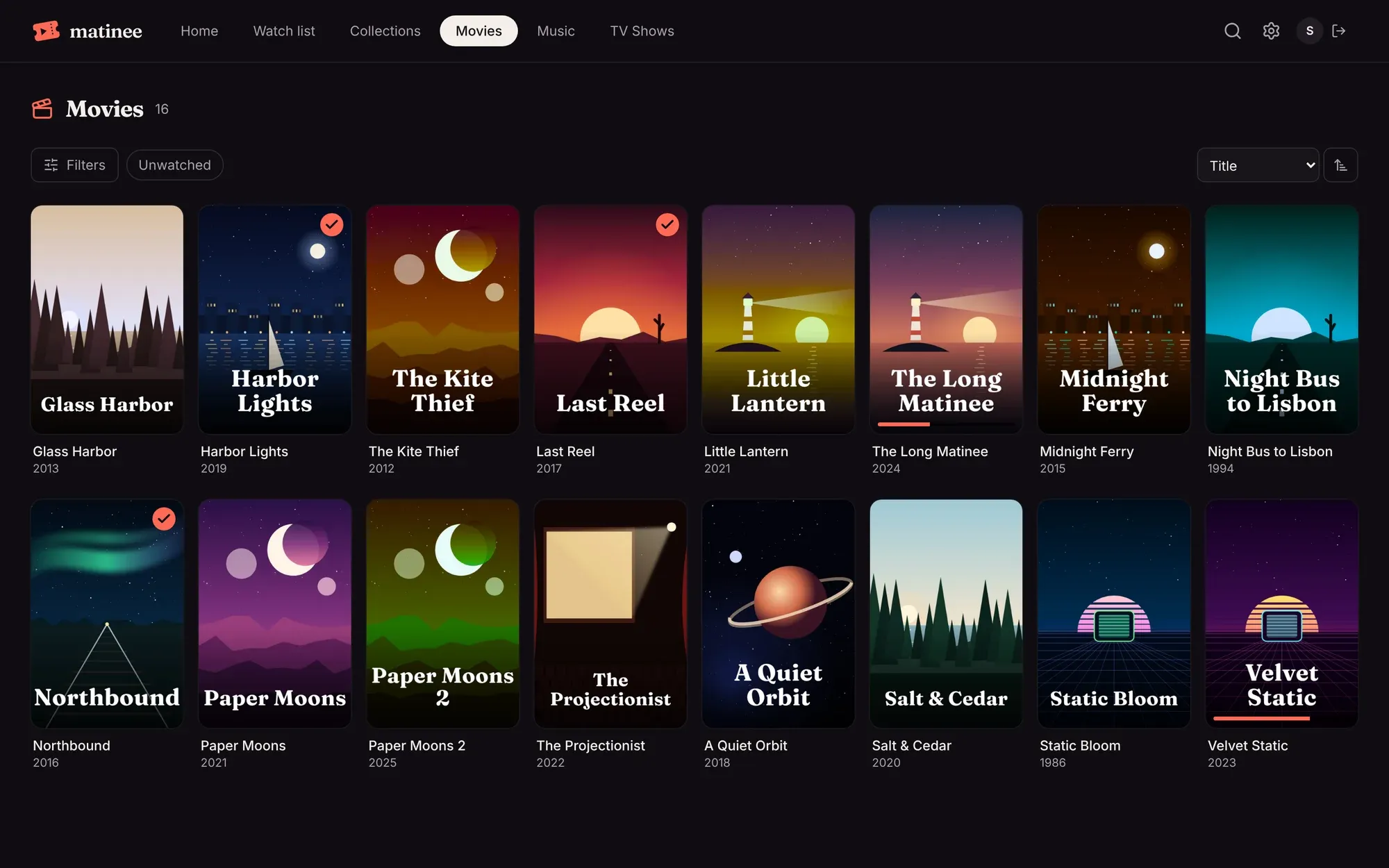
A tick on a poster means you’ve watched it; a coral bar along the bottom shows how far you got. Click a poster to open its page.
Sorting
Section titled “Sorting”The menu at the top right sorts by Title, Date added, Release date, Year, Rating, Runtime or Last watched. The arrow next to it flips the order.
Filters
Section titled “Filters”Unwatched next to Filters is a one-click filter for what you haven’t seen. Filters opens everything else:
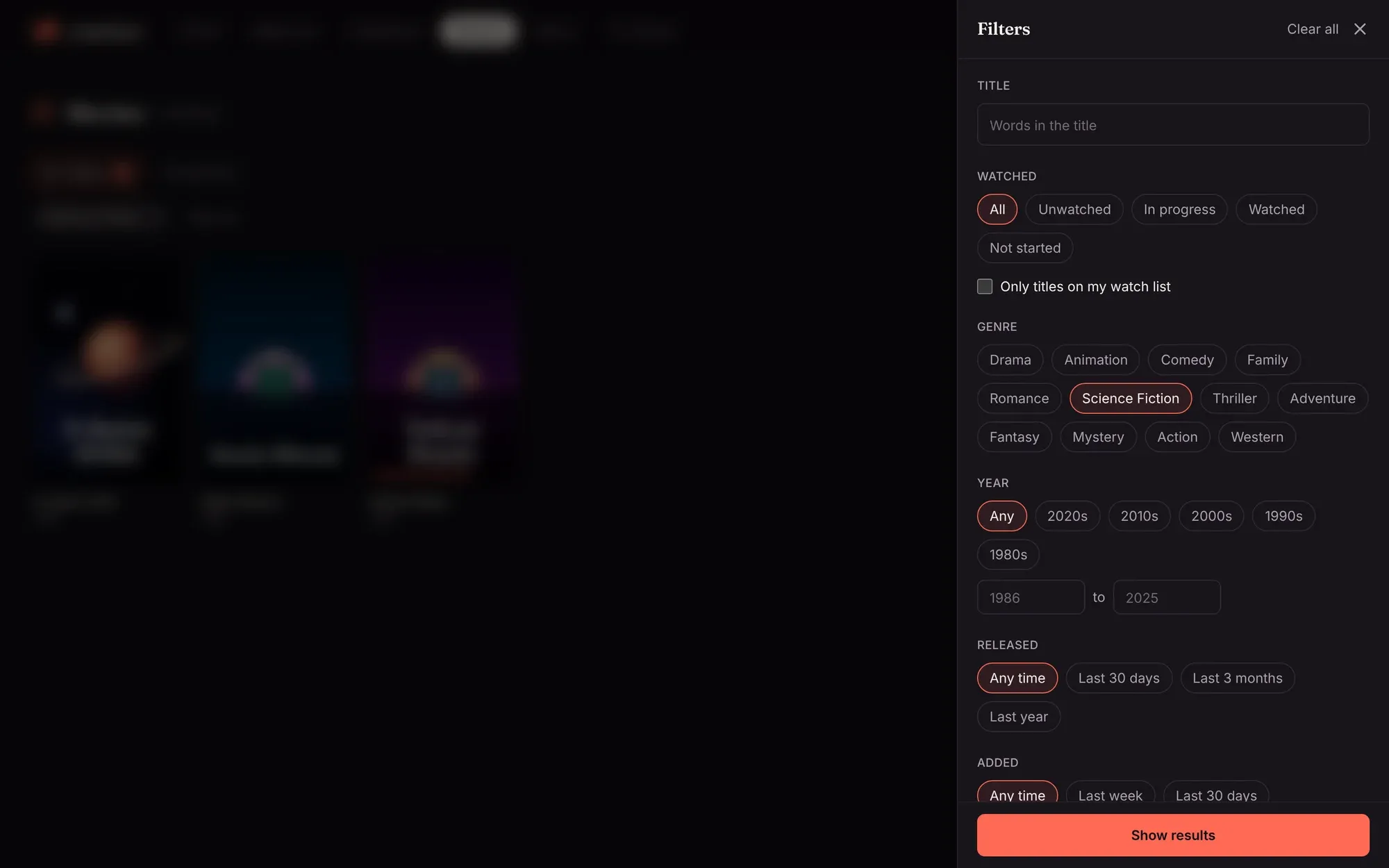
| Filter | Picks titles by |
|---|---|
| Title | words in the title |
| Watched | all, unwatched, in progress, watched, or not started; and only titles on your watch list |
| Genre | one or more genres |
| Year, Released, Added | a decade or a range of years; released or added recently |
| Rating | TMDB’s rating |
| Runtime | how long a movie, or a show’s episodes, run |
| Quality | what media analysis found: 4K, HDR, Dolby Vision, Dolby Atmos, 5.1… |
| Studio, Country, Original language, Age rating | the title’s details |
| Collection | box sets, such as a trilogy |
| Director, Cast and crew | anyone who worked on it |
Pick as many as you like; Show results applies them. The filters in use show as chips above the posters, each with an × to take it off. Matinee remembers each library’s filters, and they’re part of the page’s address, so you can bookmark or share a filtered view.
Search
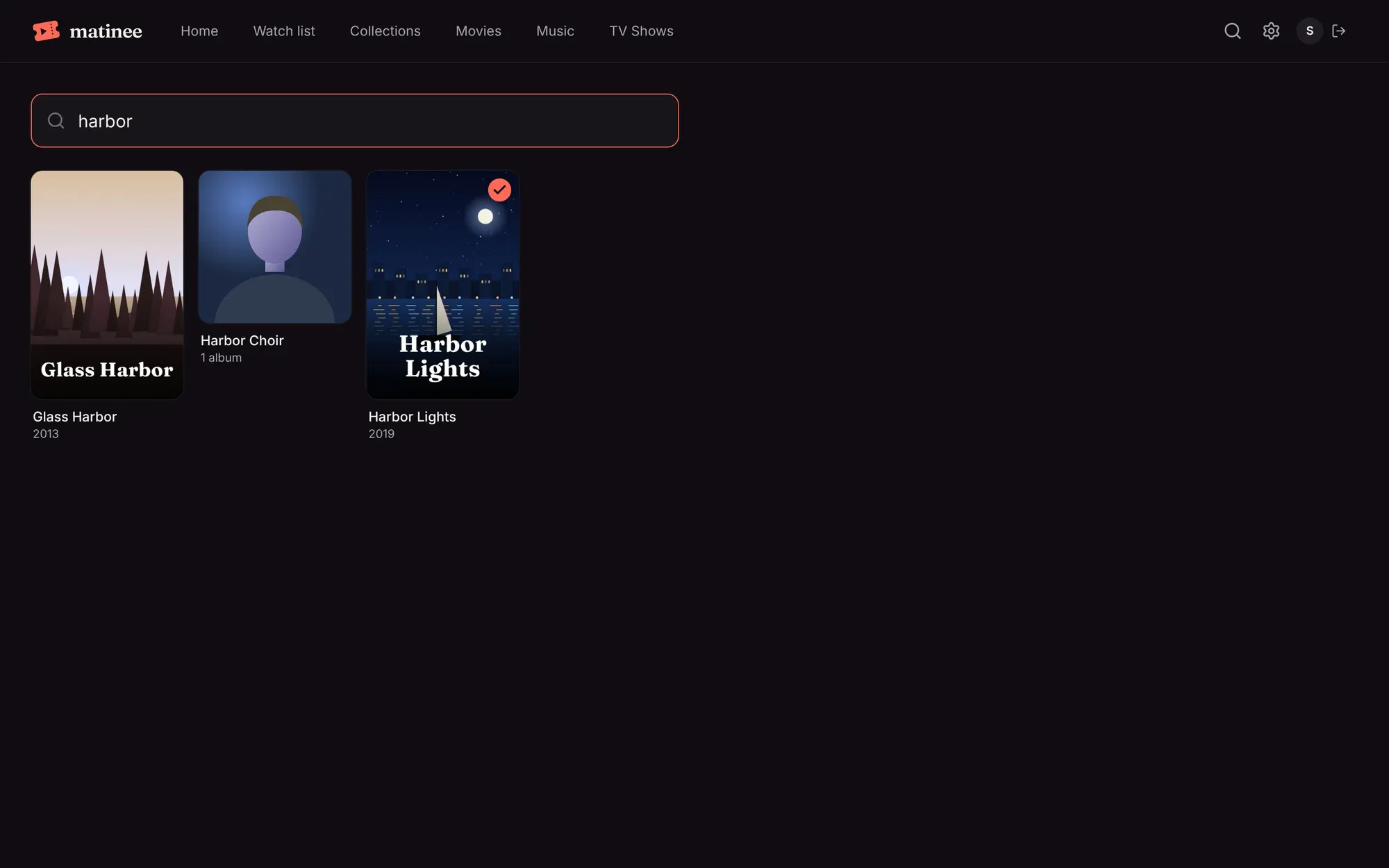
Section titled “Search”Click the magnifying glass at the top (or Search in the apps) and start typing. Results come up as you type, matching titles across every library: movies, shows, episodes, artists, albums and songs.
On a phone
Section titled “On a phone”The web player works on phones and tablets too. The libraries move into a menu, and everything else is the same.
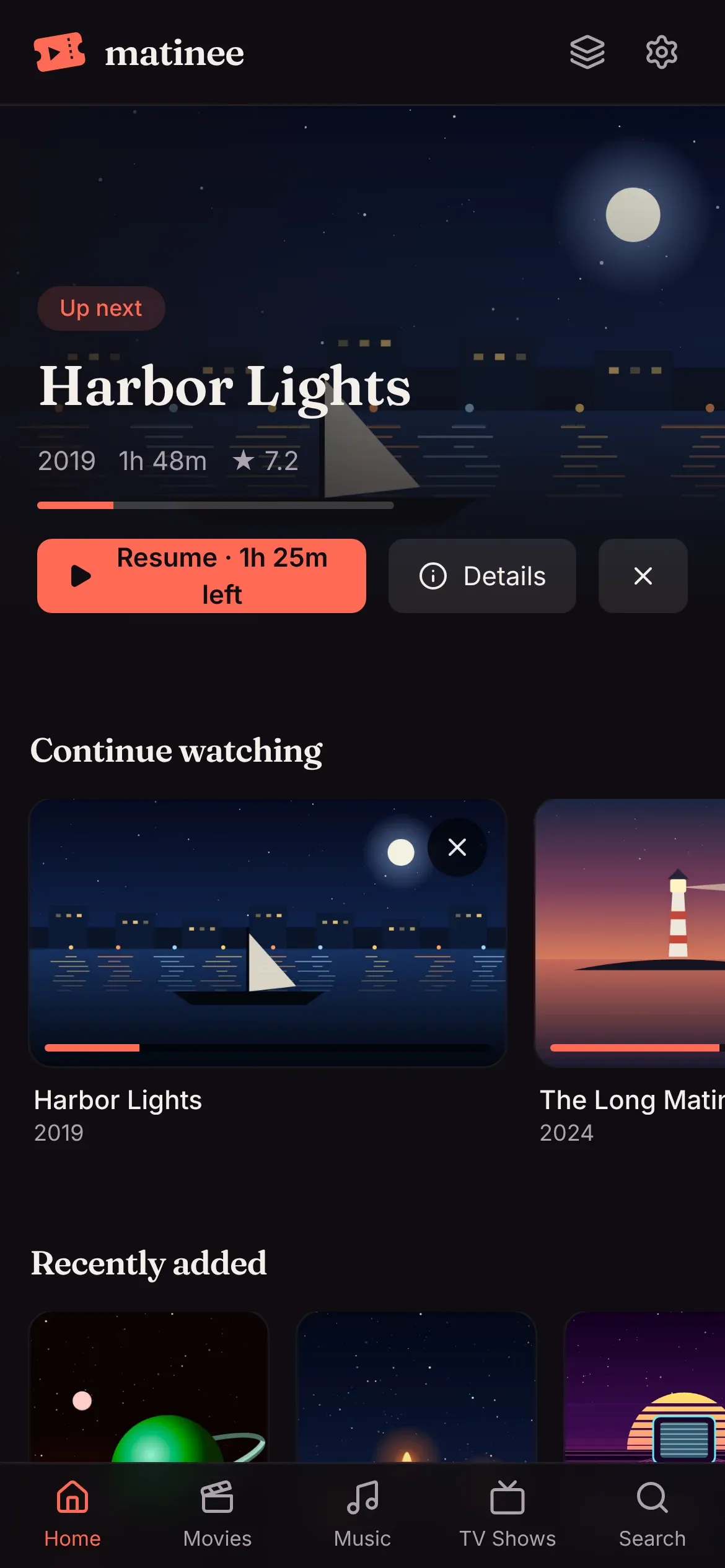
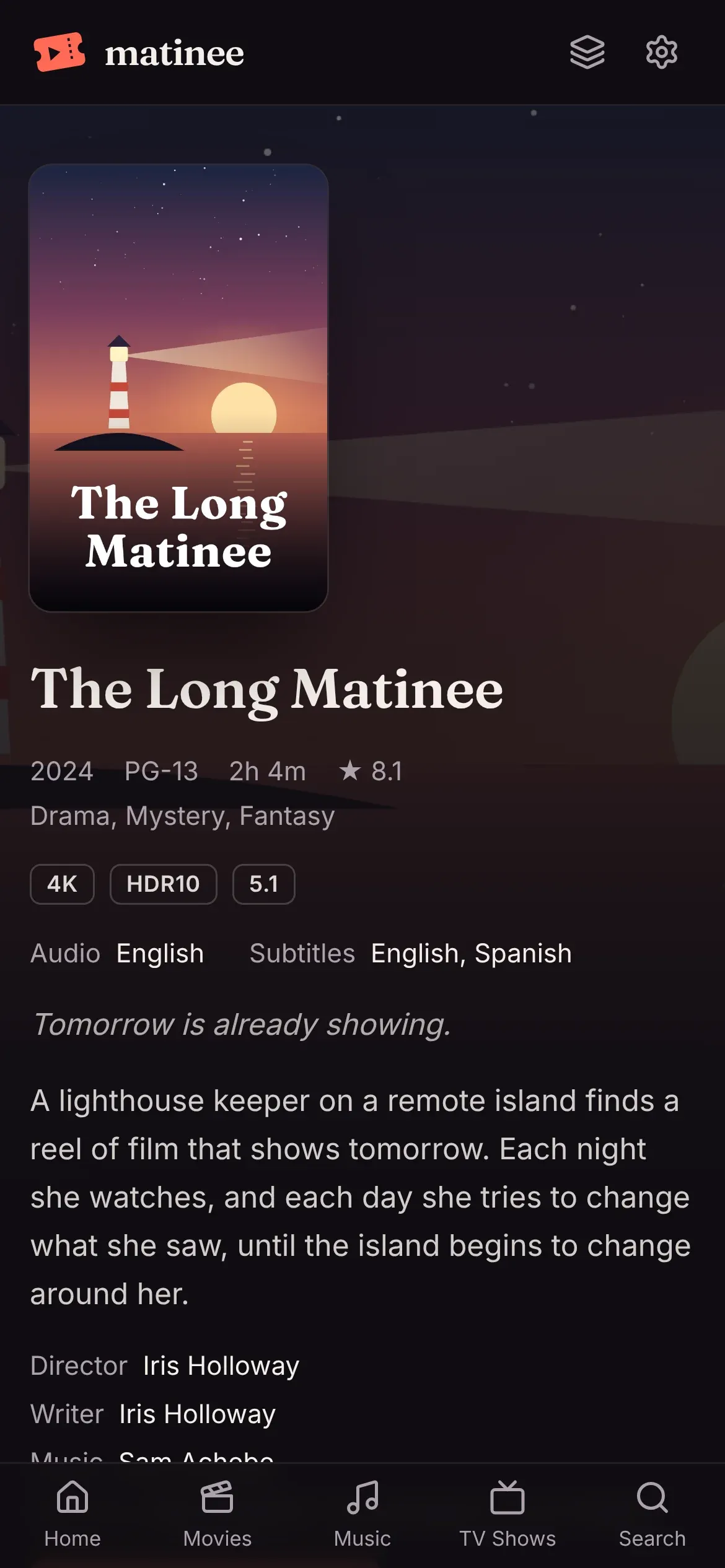
For the best experience on a phone or TV, get the Matinee apps.