
Arcade games
The Arcade plugin adds an Arcade library for your MAME ROM sets. Each game gets a page with its name, year and maker, artwork, and a Play button that runs it in the web player with MAME, with the keyboard or a gamepad. Matinee remembers where each person left off.
Adding it
Section titled “Adding it”- Open Settings → Plugins, click Add plugin, and install Arcade from the official plugins. (See Plugins for what installing a plugin means.)
- Click Turn on. Matinee asks first, because the plugin looks up artwork on
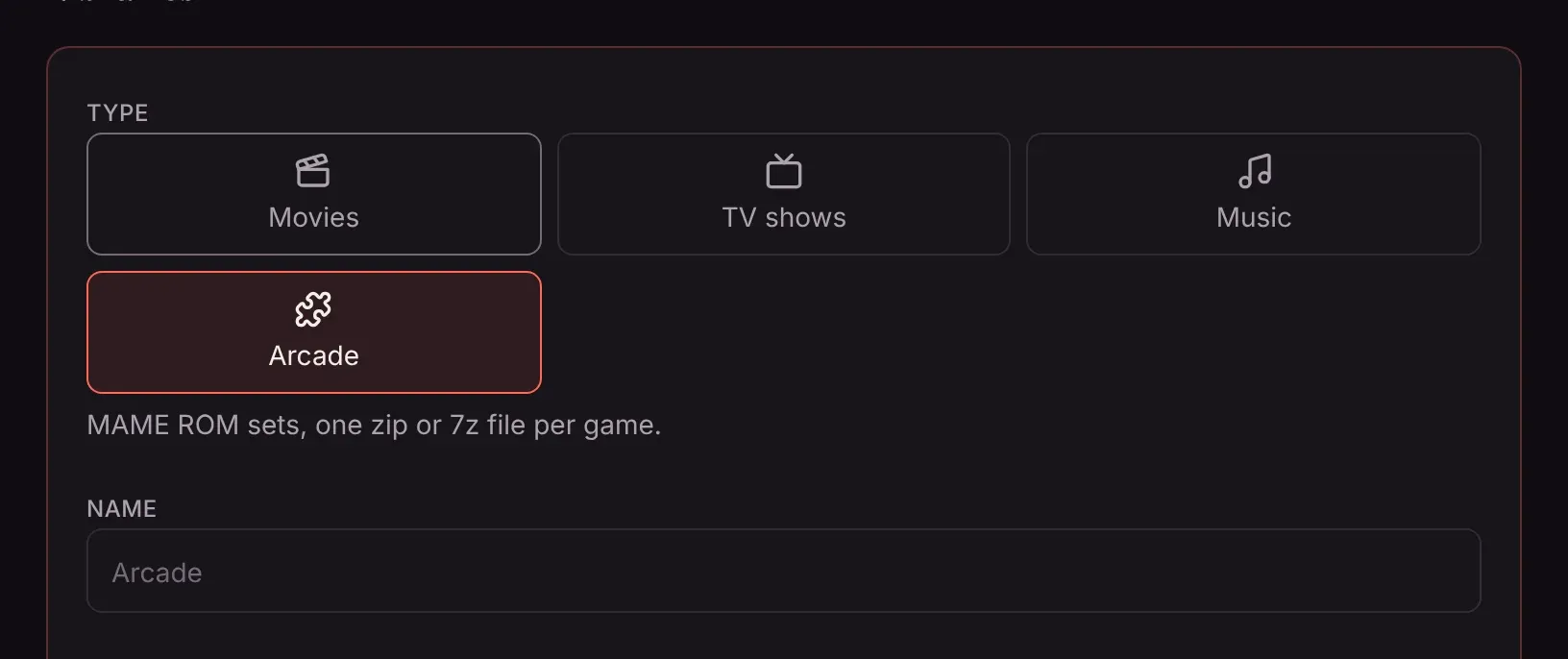
raw.githubusercontent.comfor games you have no pictures for. - In Settings → Libraries, click Add a library, pick Arcade, and choose your MAME folder.
Setting up the folder
Section titled “Setting up the folder”Point the library at the folder that has your ROMs in it. If you keep artwork the way MAME and its front ends do, point it at the folder above, so the plugin sees both:
MAME/ roms/ pacman.zip puckman.zip galaga.zip neogeo.zip snap/ screenshots: pacman.png titles/ title screens flyers/ flyers, shown as the poster catver.ini categories, shown as genres (optional)- One zip or 7z file per game, named the way MAME names it (
pacman.zip). Files that aren’t arcade games, such as BIOS sets, are left out of the library but still used to run the games that need them, so keep them in the same folder. - ROM sets for MAME 0.289. Sets for other versions mostly work too; a game whose ROMs changed since won’t start, and MAME says which files it’s missing.
- Split or non-merged sets show every game. With merged sets, clones are inside their parent’s zip, so only the parents show.
- Artwork comes from
flyers,titlesandsnapfolders, as.pngor.jpgnamed like the game. A clone without its own uses its parent’s. Games without any get artwork from the libretro thumbnails collection. - Folders such as
artwork,samplesandcheatare skipped.
Which games play
Section titled “Which games play”Every arcade game in your library shows up, and its page says Plays in the browser: Yes or why not. The plugin’s MAME is built in pieces, one for each family of games, so a game loads only what it needs. This first version plays:
- Pac-Man, Galaxian, Galaga, Donkey Kong, Asteroids, Centipede, Missile Command, 1942, Defender, Robotron, Joust and Exidy’s games
- Capcom’s CPS-1 games, such as Street Fighter II and Final Fight
- Neo Geo games, with the
neogeo.zipBIOS next to them
More come with updates to the plugin. Games that need a hard disk or CD image (a CHD file) don’t play in the browser.
The phone and TV apps don’t play games yet; open them in the web player.
Playing
Section titled “Playing”Click Play on a game’s page. The first start downloads the game and its piece of MAME, which takes a moment.
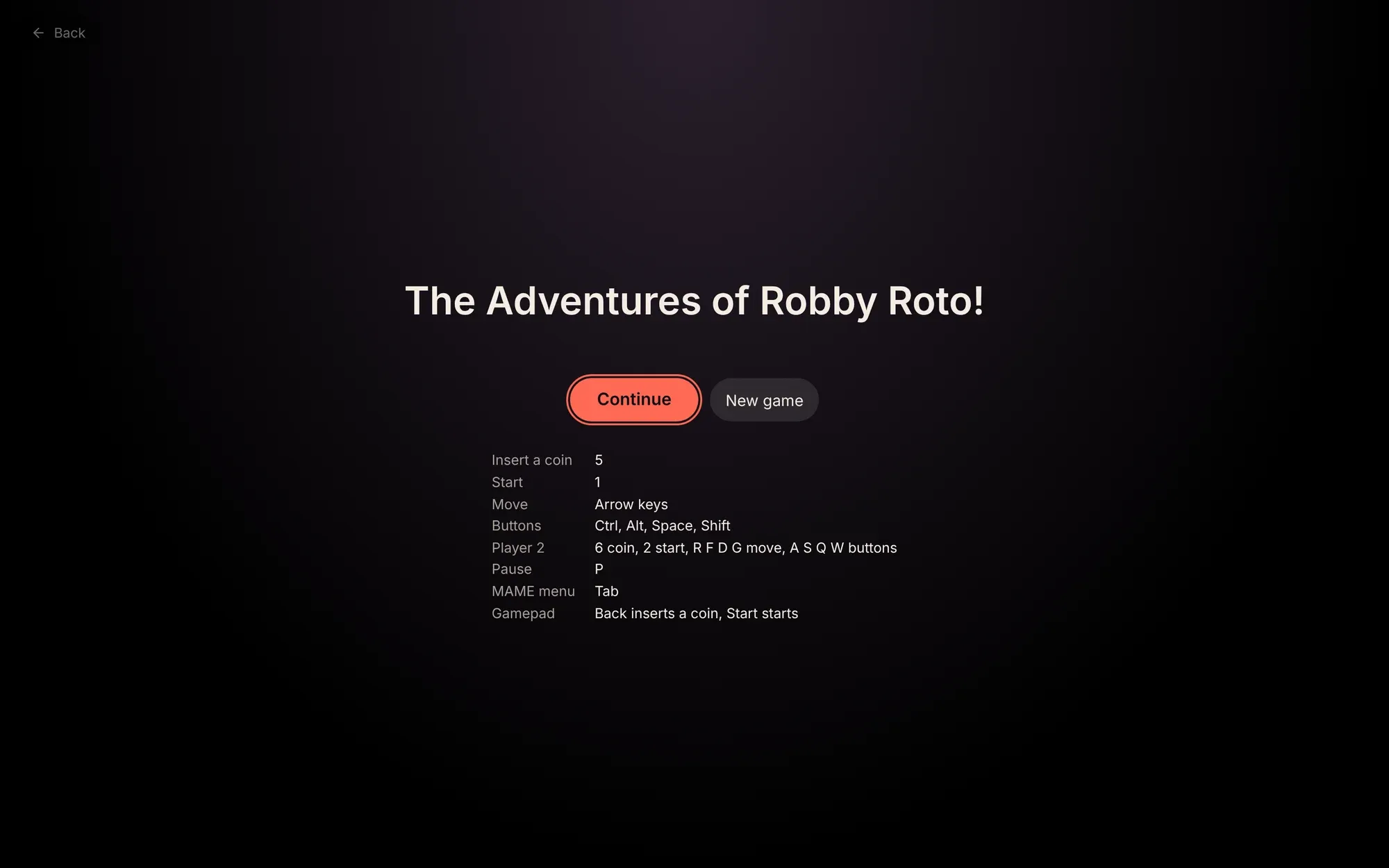
| Keyboard | |
|---|---|
| Insert a coin | 5 |
| Start | 1 |
| Move | Arrow keys |
| Buttons | Ctrl, Alt, Space, Shift |
| Player 2 | 6 coin, 2 start, R F D G move, A S Q W buttons |
| Pause | P |
| MAME’s menu | Tab |
A gamepad works as soon as you press one of its buttons: the stick or pad moves, and on most pads Back (or Select) inserts a coin and Start starts. To change the keys or buttons, open MAME’s menu with Tab and choose Input Settings.
Controls shows the keys while you play, and Full screen fills the screen. Matinee’s Back button, top left, leaves the game.
Saving
Section titled “Saving”Matinee saves your place every minute while you play, and whenever you click Save. Next time, the game offers Continue, which picks up there, or New game. Load save goes back to the last save while you play.
Each person, and each profile, has their own saves. Removing the plugin deletes them.
A few games don’t support saving in MAME; their Save button is greyed out.