
Plugins
Plugins add things Matinee doesn’t do by itself: a new kind of library with its own player, such as arcade games, or something that happens when a title is added or someone starts watching. Only admins can add them, in Settings → Plugins.
Adding a plugin
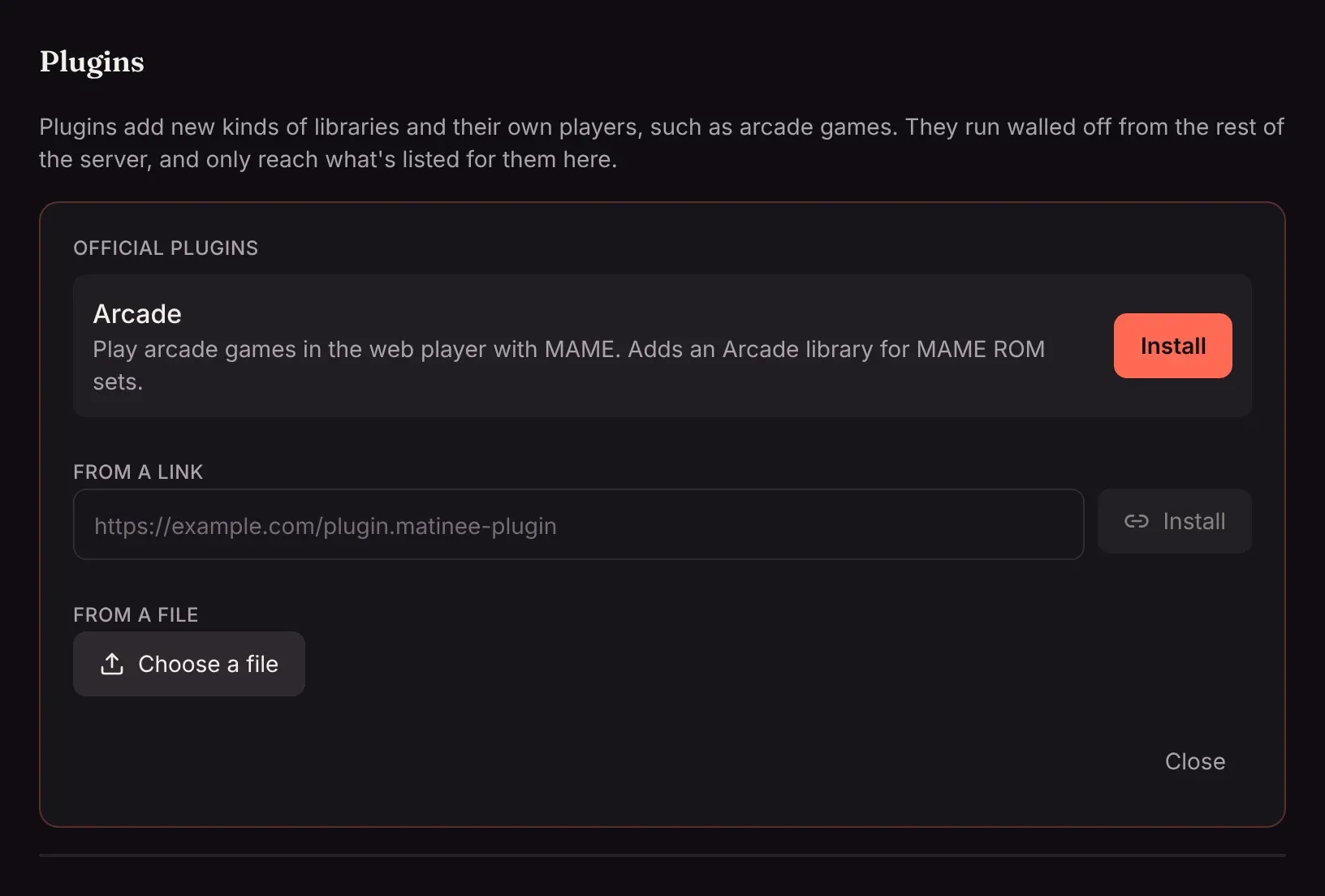
Section titled “Adding a plugin”- Open Settings → Plugins and click Add plugin.
- Pick one of the Official plugins and click Install. You can also install one from a link someone gave you, with From a link, or a
.matinee-pluginfile you downloaded, with From a file. - The plugin appears in the list, turned off. Click its name to see what it adds and what it can reach (below), then click Turn on.
A plugin that adds a kind of library shows up as a new choice when you add a library. Its titles get their own player in the web player.
Installing a newer version of a plugin you have replaces it and keeps it on, along with its settings.
What a plugin can reach
Section titled “What a plugin can reach”Plugins run walled off from the rest of Matinee. Each one can only reach:
- Its own libraries’ folders, and only to read them. It can’t change or delete your files, or see any other folder on the server.
- The websites it lists, such as a site with game artwork. Matinee asks before you turn a plugin on: It will be able to reach… A plugin that lists none never goes on the internet.
If an update to a plugin asks to reach more websites than before, Matinee turns it off until you turn it on again and agree.
A plugin’s player can’t see your password or act as you. It only gets the title it plays, and a place to keep things for each person, such as their saved games.
Only install plugins you trust, the same as any other software, since a plugin decides what its libraries show.
Settings, turning off and removing
Section titled “Settings, turning off and removing”Click a plugin’s name to open it:
- Some plugins have settings, such as an API key for a website. Fill them in and click Save.
- Turn off stops the plugin. Libraries it added stay, with their titles, but aren’t scanned and can’t be played until you turn it on again.
- Remove deletes the plugin, along with what it kept for everyone, such as saved games. Its libraries stay until you remove them in Settings → Libraries.
If a plugin isn’t running
Section titled “If a plugin isn’t running”A plugin that’s on but shows Not running says why underneath. The usual reasons:
- Made for a different version of Matinee: update Matinee, or get the version of the plugin that matches yours.
- It now asks to reach a new website: turn it on again to agree.
- Another plugin already adds a library kind with this name: two plugins can’t both add, say, an Arcade library. Remove one of them.
For server admins
Section titled “For server admins”Plugins live in the plugins folder of Matinee’s data folder. With the Helm chart they’re kept on a volume of their own (plugins.persistence), since the data folder there is rebuilt on every restart.
To turn plugins off on a server altogether, set MATINEE_PLUGINS=false (settings reference).
Writing a plugin? Start with How plugins work and Your first plugin.