
Home Assistant
Connect Matinee to Home Assistant and every Matinee player in your home shows up there: the web player in each browser, the phone and tablet apps, and the TV apps. You can see what each one is playing, pause it, start a film on the living room TV, set a sleep timer, and build automations around what you watch, such as dimming the lights when a movie starts.
Setting it up works like signing in a TV: Home Assistant finds Matinee on your network and shows a code, and you approve it in Matinee. There are no API keys or passwords to copy.
What you get
Section titled “What you get”- A media player for every Matinee player. Each shows what’s playing (with its poster), how far in it is, and who’s watching, and takes play, pause, seek, stop, next episode and volume where the device has its own. Players come and go by themselves as apps open and close.
- Start anything on any player. Pick from your libraries in Home Assistant’s media browser, or name a title in an automation: play “The Muppet Movie” on the living room TV. A show starts at the next episode the person on that device hasn’t watched.
- A sleep timer and subtitles for each player, as actions.
- Sensors: how many players are playing right now (and what), how many titles each library has, and the newest addition.
- A Scan libraries button that looks for new files in every library.
- Events for automations: something started, paused, resumed or stopped playing (and whether it reached the end), something new was added, a library finished scanning.
Setting it up
Section titled “Setting it up”You need a Matinee admin account, and Home Assistant 2026.1 or newer.
- Install the integration. In Home Assistant, open HACS, choose Custom repositories in the menu, and add
https://github.com/yeixio/matinee-home-assistantas an Integration. Then search HACS for Matinee, download it, and restart Home Assistant. - Add Matinee. When Matinee is on the same network, Home Assistant finds it by itself: open Settings → Devices & services, where Matinee waits under Discovered, and click Add. Otherwise click Add integration, pick Matinee, and type the address you open Matinee at, such as
http://192.168.1.20:7171. - Approve the code. Home Assistant shows a code and a link to your server’s /link page. Open it on any phone or computer signed in to Matinee as an admin, check that it says Home Assistant, and click Sign in. Home Assistant carries on by itself.
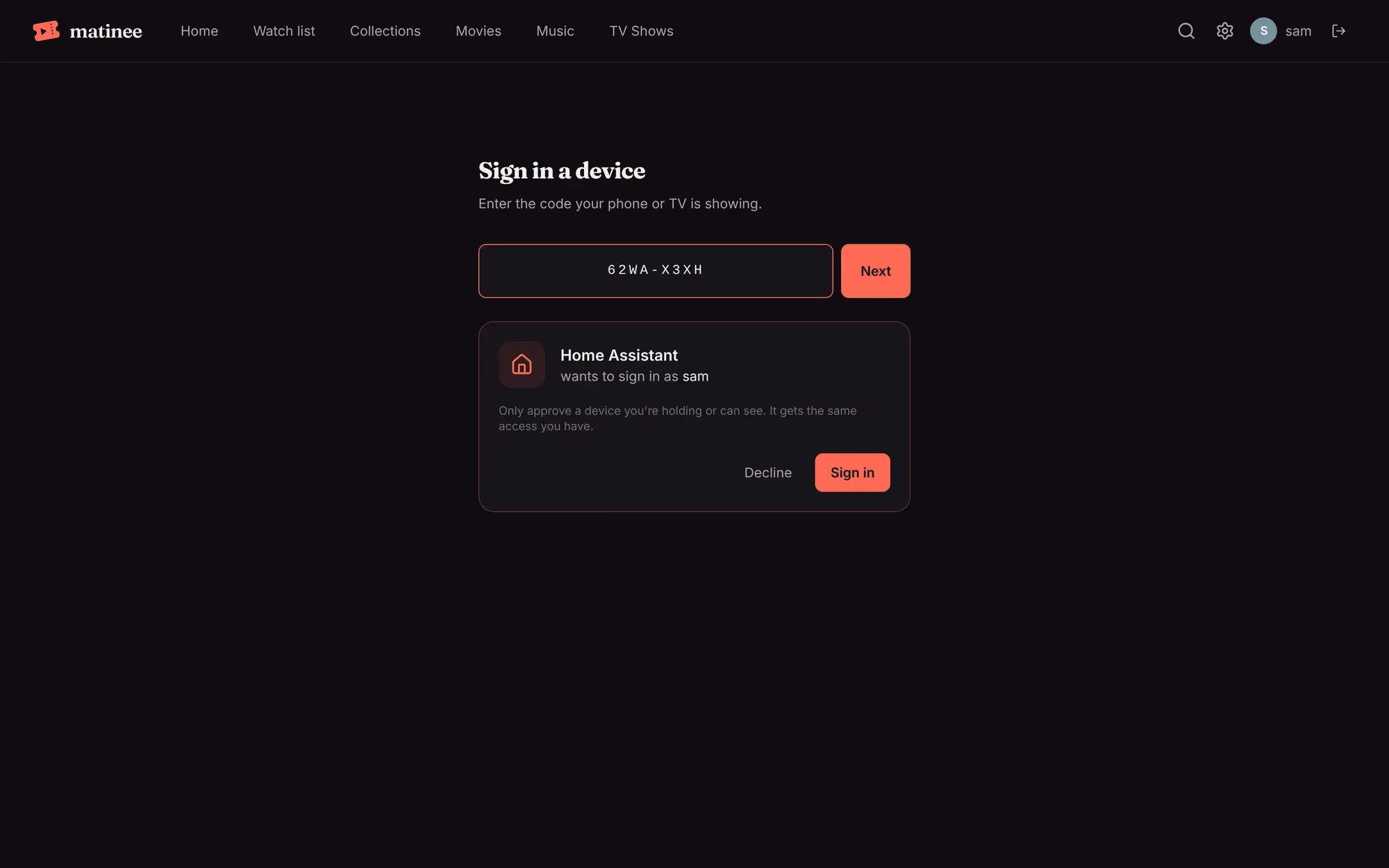
Home Assistant then appears in Matinee under Settings → Your devices, where you can sign it out at any time. It stays signed in as long as it’s in use, so you won’t have to do this again.
Controlling players
Section titled “Controlling players”Every Matinee player that’s open shows up as a media player named after its device, such as Living room TV or Firefox on macOS. A player that’s closed shows as off, and comes back when the app opens again. Players work whether someone signed in or is watching at home without an account.
When Home Assistant (or anything else) controls a player, the player says so for a moment, so nobody wonders why the film paused by itself:
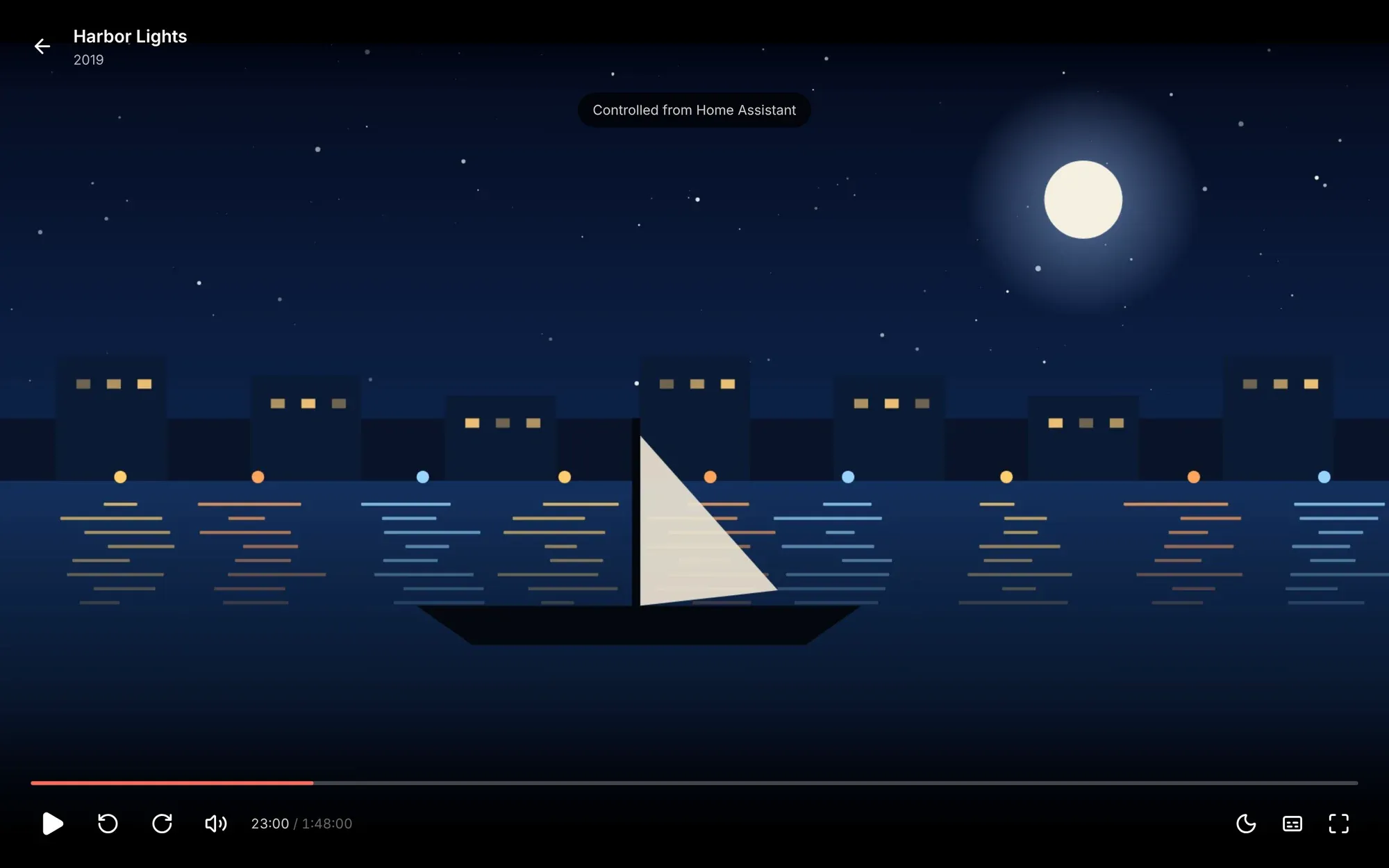
A few things to know:
- The apps take commands while they’re open on screen. A phone in someone’s pocket isn’t a player until they open Matinee.
- TVs keep the volume to the TV itself, so TV players offer no volume control in Home Assistant.
- In the web player, one tab per browser listens. The tab with the player open takes over.
- A kids profile only plays what it could pick by itself. Starting something else on its player fails, and Home Assistant says the title wasn’t found.
Starting something to watch
Section titled “Starting something to watch”From the dashboard, open a player’s Browse media to pick from Recently added or any library. In an automation or script, use the Media player: Play media action with the title as the content id:
action: media_player.play_mediatarget: entity_id: media_player.living_room_tvdata: media_content_type: movie media_content_id: The Muppet MovieThe content type can be movie, tvshow, episode or music, and narrows the search; the title doesn’t have to be exact. To start partway, add extra: { position: 600 } (seconds). Items picked in the media browser use ids like matinee://item/123, which always mean that exact title.
The sleep timer
Section titled “The sleep timer”The Matinee: Sleep timer action works like the player’s own sleep timer: pause after so many minutes, or stop at the end of the episode or movie.
action: matinee.sleep_timertarget: entity_id: media_player.bedroom_tvdata: minutes: 30 # or end_of_item: true; 0 turns it offMatinee: Set subtitles shows a subtitle track by its id, or none with an empty track. The player’s subtitles attribute says which track is showing.
Automations
Section titled “Automations”The Activity event entity fires for everything that happens, so you can pick it as a trigger in the automation editor. The same events arrive on Home Assistant’s event bus as matinee_event, with:
| Field | What it is |
|---|---|
type |
playback_started, playback_paused, playback_resumed, playback_stopped, item_added or library_scanned |
title, kind, item_id |
What it’s about: a movie, episode or track. Episodes also have show, season and episode |
client_name, client_id |
The player, for playback events |
user |
Who’s watching: the account or profile |
position |
Seconds into the title |
finished |
For playback_stopped: whether it got to the end |
library, library_id |
For library_scanned and item_added |
Dim the lights when a movie starts on the living room TV, and bring them back when it’s paused or over:
triggers: - trigger: state entity_id: media_player.living_room_tv to: playingactions: - action: light.turn_on target: entity_id: light.living_room data: brightness_pct: 10Tell everyone when a new episode arrives:
triggers: - trigger: event event_type: matinee_event event_data: type: item_added kind: episodeactions: - action: notify.notify data: message: "New on Matinee: {{ trigger.event.data.show }}, {{ trigger.event.data.title }}"If something’s wrong
Section titled “If something’s wrong”- Matinee wasn’t discovered. Discovery only works when Home Assistant and Matinee are on the same network. Add it by address instead. A server in Kubernetes is discovered when the Helm chart’s discovery is on (see Kubernetes).
- “That account isn’t a Matinee admin”. Approve the code while signed in as an admin. Home Assistant needs to see and control every player, which only admins may.
- A player doesn’t show up. Update the app or reload the web player: players from before this feature don’t report what they play.
- Home Assistant asks to sign in again. Someone signed it out under Settings → Your devices, or removed the admin account it used. Click Reconfigure and approve a new code.
- Players show as unavailable. Home Assistant lost its connection to Matinee and reconnects by itself, waiting a little longer each time, up to a minute.