
Overseerr
If you run Overseerr, or Jellyseerr, which works the same way, connect it to Matinee and everyone gets a Discover tab: recommendations based on what they watched, what’s trending and coming up, and a way to ask for any movie or show.
Connecting
Section titled “Connecting”- Open Settings → Radarr and Sonarr. Overseerr is at the bottom of the section.
- Click Connect and enter Overseerr’s address, such as
http://overseerr:5055, and its API key. You’ll find the key in Overseerr under Settings → General. - Click Test. Matinee checks the address and key and lists Overseerr’s users.
- Choose whose name requests are made in for people who don’t have an Overseerr account, then Save.
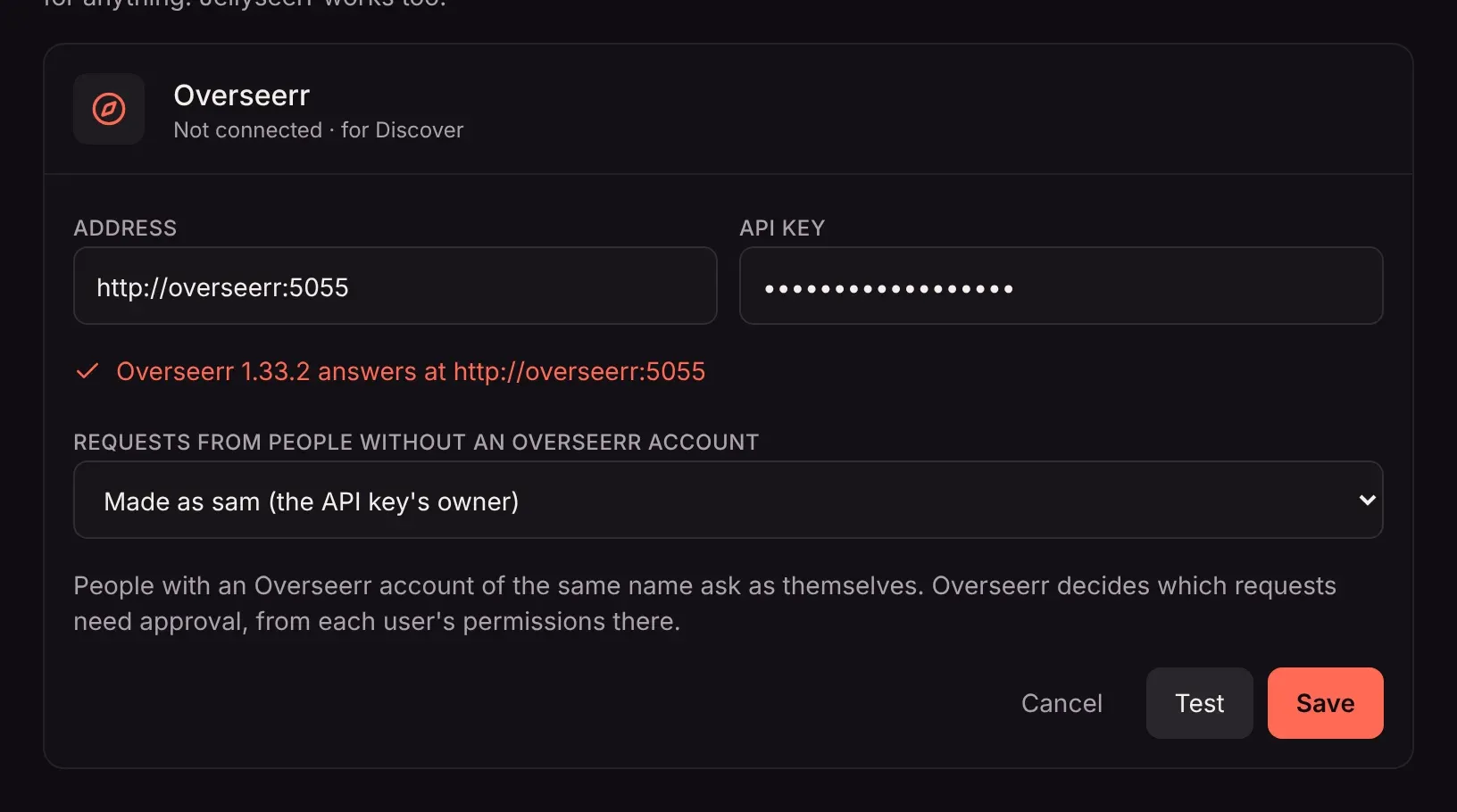
The Discover tab appears straight away. Disconnect takes it away again.
Who requests are made as
Section titled “Who requests are made as”Matinee asks Overseerr in the name of the person asking, so Overseerr’s own rules apply: who needs approval, request limits, and which quality and folder titles get.
- Someone whose Matinee name matches an Overseerr user’s name, username or email (before the @) asks as that user.
- Everyone else asks as the user you chose when connecting. By default that’s the API key’s owner.
- A profile asks as the account it belongs to.
Who may ask at all is set by Who can add movies and shows, the same setting Radarr and Sonarr use. With Only admins add titles, everyone else can browse Discover but not ask.
Overseerr and Radarr or Sonarr together
Section titled “Overseerr and Radarr or Sonarr together”They work side by side. Requests from Discover go through Overseerr, while Requests (the inbox icon), Coming soon and problem reports work with the Radarr and Sonarr you connected to Matinee directly. You can connect Overseerr without connecting Radarr or Sonarr to Matinee at all.