
Matinee Server for Mac
Matinee Server is a Mac app that runs the whole Matinee server from your menu bar. FFmpeg comes inside it, so there’s nothing else to install: download it, open it, and your Mac is a media server for every phone, tablet and TV in the house.
It needs macOS 13 Ventura or later and runs on Apple silicon and Intel Macs.
Install
Section titled “Install”- Download Matinee Server.
- Open the disk image and drag Matinee Server to Applications.
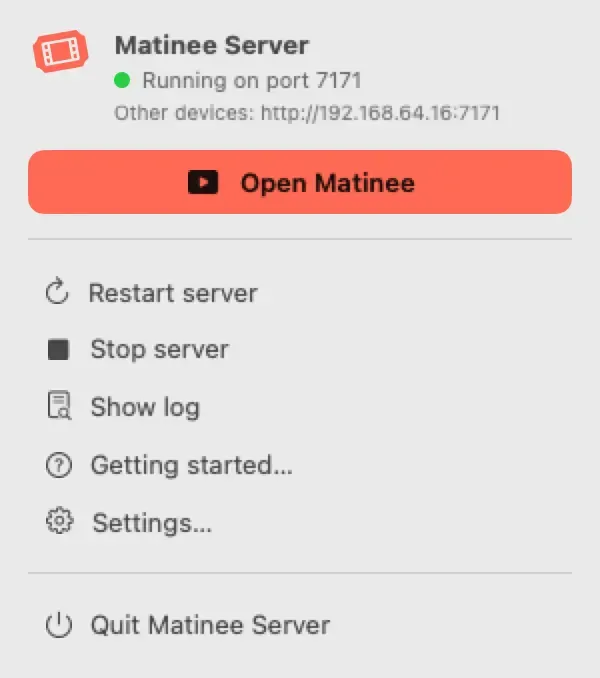
- Open it from Applications. A ticket appears in the menu bar and the server starts.
The app is signed and notarized by Apple, so it opens like any other app you download.
Getting started
Section titled “Getting started”The first time it opens, Matinee Server shows Getting started:
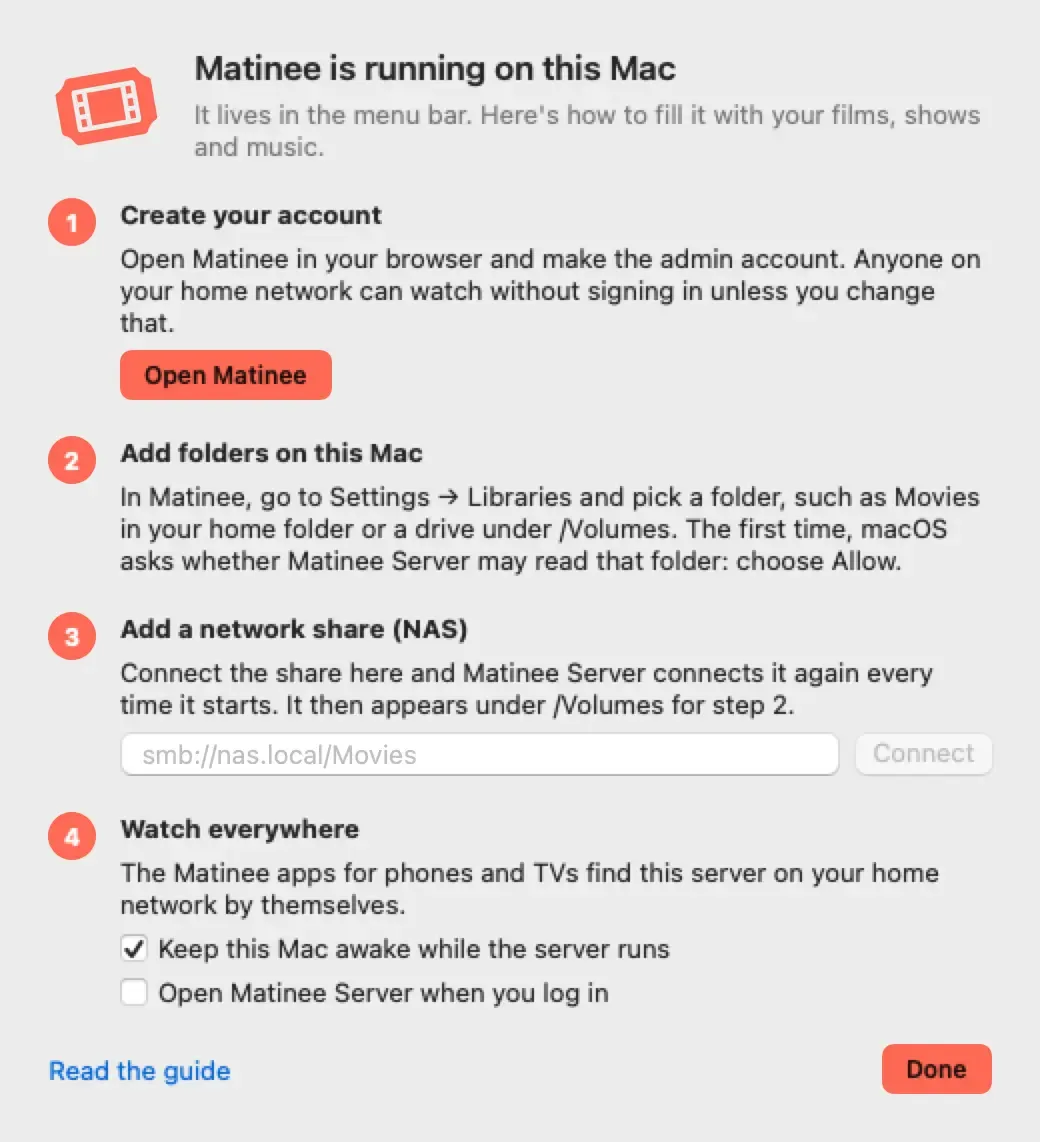
- Create your account. Open Matinee opens the server in your browser, where you make the admin account.
- Add folders on this Mac. In Matinee, go to Settings → Libraries and pick a folder, such as Movies in your home folder, or a drive under
/Volumes. The first time Matinee reads a folder in your home folder or on another drive, macOS asks whether Matinee Server may: choose Allow. If you said no by mistake, turn it back on in System Settings → Privacy & Security → Files and Folders under Matinee Server. - Add a network share. If your films live on a NAS, type the share’s address, such as
smb://nas.local/Movies, and press Connect. macOS asks for the share’s user and password once (tick Remember this password in my keychain). The share then appears under/Volumes, and you add it in Matinee like any other folder. Matinee Server connects its shares again every time it starts, so they’re there after a restart. - Watch everywhere. The Matinee apps find this Mac on your home network by themselves. When macOS asks whether Matinee Server may find devices on your local network, choose Allow.
You can open Getting started again from the menu at any time.
The menu
Section titled “The menu”| Open Matinee | Opens the server in your browser. |
| Other devices | The address other devices on your network can type in, such as http://192.168.1.20:7171. |
| Restart, Stop, Start server | Control the server. Quitting Matinee Server stops it too, after letting players know it’s going away. |
| Show log | Opens the server’s log in Console. |
| Settings | The server’s name and port, open at login, keeping the Mac awake, updates and network shares. |
| Check for updates | Looks for a new version now. |
If the server stops on its own, Matinee Server starts it again. If it keeps stopping, the menu says why and the log has the details.
Settings
Section titled “Settings”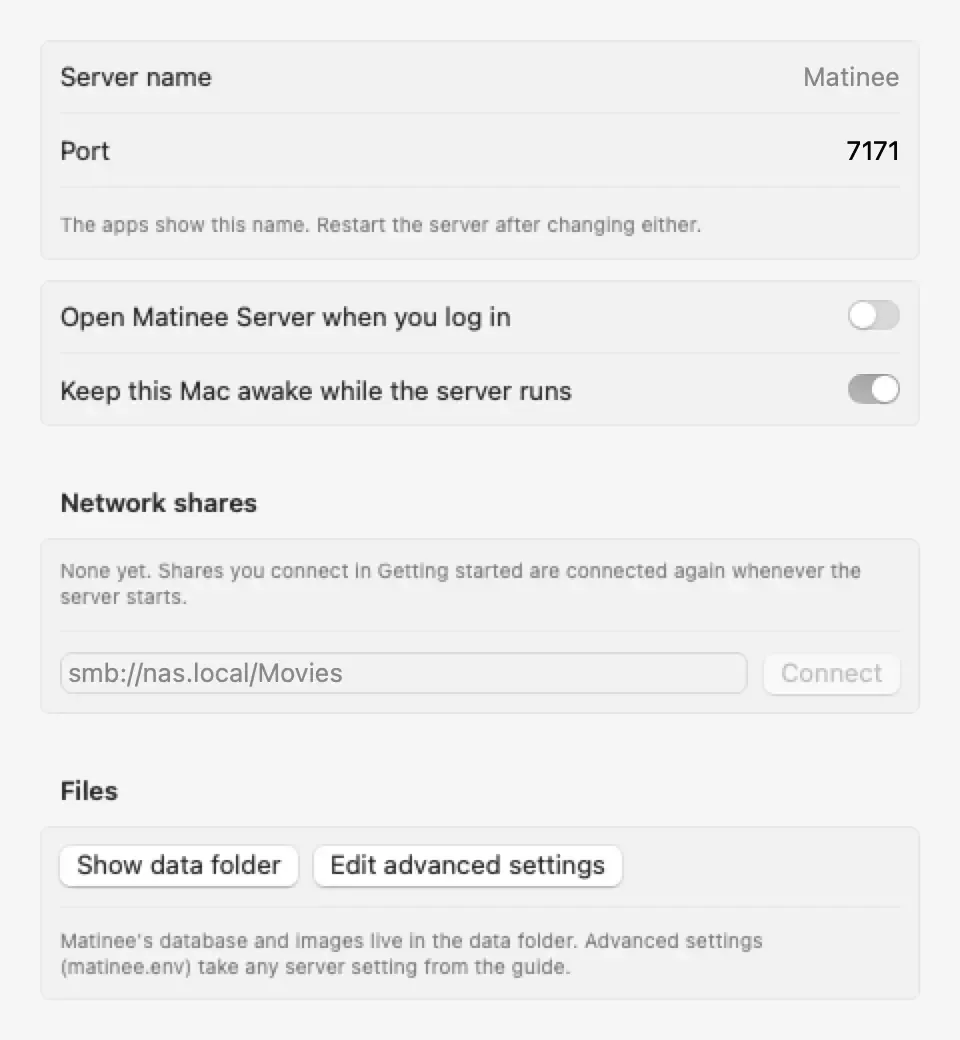
- Server name is the name the apps show for this server. Port is where it listens,
7171unless you change it. Restart the server after changing either. - Open Matinee Server when you log in adds it to your login items, so the server comes back after the Mac restarts. To start the Mac itself after a power cut, turn on Start up automatically after a power failure in System Settings → Energy, where your Mac has it.
- Keep this Mac awake while the server runs stops the Mac from going to sleep by itself, so nobody’s film stops halfway. The screen can still turn off. It’s on unless you turn it off.
- Network shares lists the shares that are connected again at every start. Remove one you no longer use.
- Show data folder opens
~/Library/Application Support/Matinee Server, which holds Matinee’s database and images. Back it up like any other install’s data folder. - Edit advanced settings opens
matinee.envin that folder. Any setting from the settings reference goes there, one per line, such asMATINEE_TMDB_KEY=your-key. Restart the server afterwards.
Updates
Section titled “Updates”Matinee Server checks for new versions by itself and offers to install them. Each one includes the matching server and FFmpeg, and players wait through the restart. Turn automatic checks off in Settings, or check now from the menu.
Moving from Homebrew
Section titled “Moving from Homebrew”If you ran Matinee with Homebrew before, stop that one first, because only one server can use port 7171 (Matinee Server says Another Matinee is using port 7171 otherwise):
brew services stop matineeTo keep your library, accounts and watch history, quit Matinee Server, copy the Homebrew data folder over, and open it again:
cp -R "$(brew --prefix)/var/matinee/" ~/Library/Application\ Support/Matinee\ Server/Then brew uninstall matinee if you like.
Hardware transcoding
Section titled “Hardware transcoding”When a device can’t play a file as it is, Matinee converts it with the Mac’s own video hardware (VideoToolbox), which it finds by itself. Settings → Streaming → Transcoding in Matinee shows it in use. See Hardware transcoding.