
Seek bar previews
Move the mouse over the seek bar, or drag it, and a small picture of that moment shows above the bar with its time. Let go where you want to be. No more jumping back and forth to find the start of a scene.
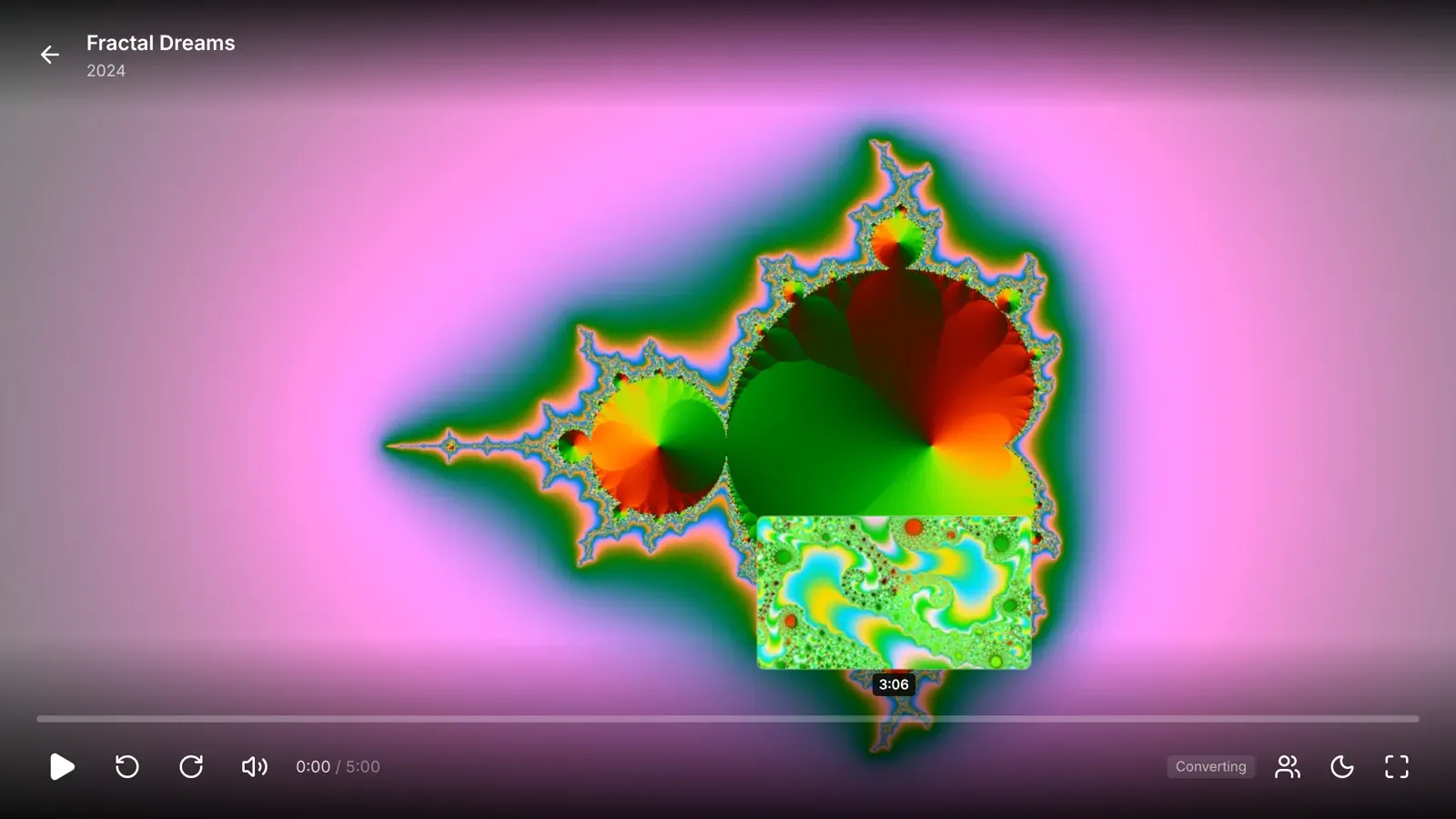
In the browser
Section titled “In the browser”- With a mouse, the picture follows the pointer before you click, so you can look along the whole movie without leaving your spot.
- On a touch screen, drag along the bar with your finger. The bar is taller on phones, so it’s easy to catch.
- With the keyboard, tab to the bar and use the arrow keys: the picture shows where each press takes you.
Chapters on the bar
Section titled “Chapters on the bar”From Matinee 0.2.3, a movie or episode whose file has its own chapters (most Blu-ray and DVD rips do) shows a small notch in the seek bar where each chapter starts. Point at the bar, or drag it, and the chapter’s name shows above the time, so you can find the start of a scene by its name.
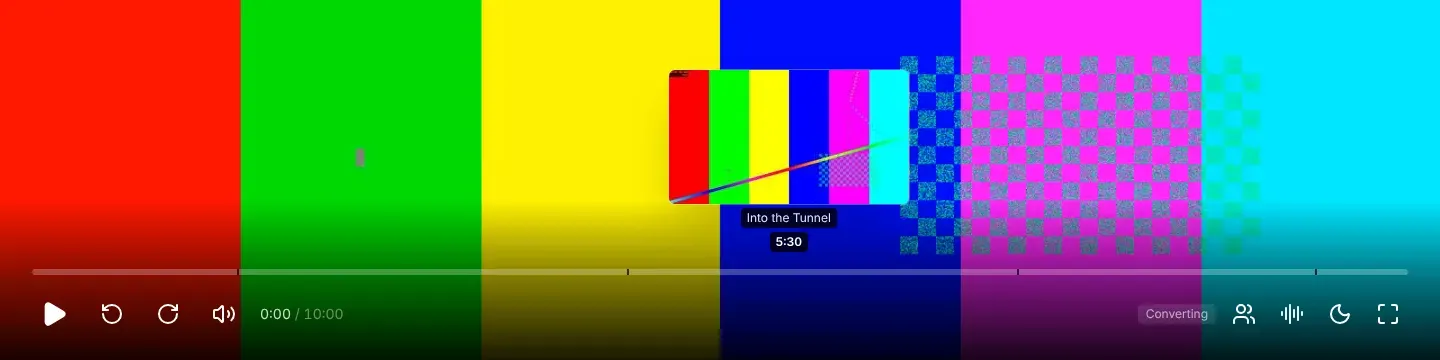
Chapters come from the file itself, so there’s nothing to set up. Matinee reads them when it analyzes the file. After the update to 0.2.3 it reads every file once more in the background to pick them up, which only looks at each file’s description and is quick. A file with no chapters, or just one, has a plain bar.
Jumping far
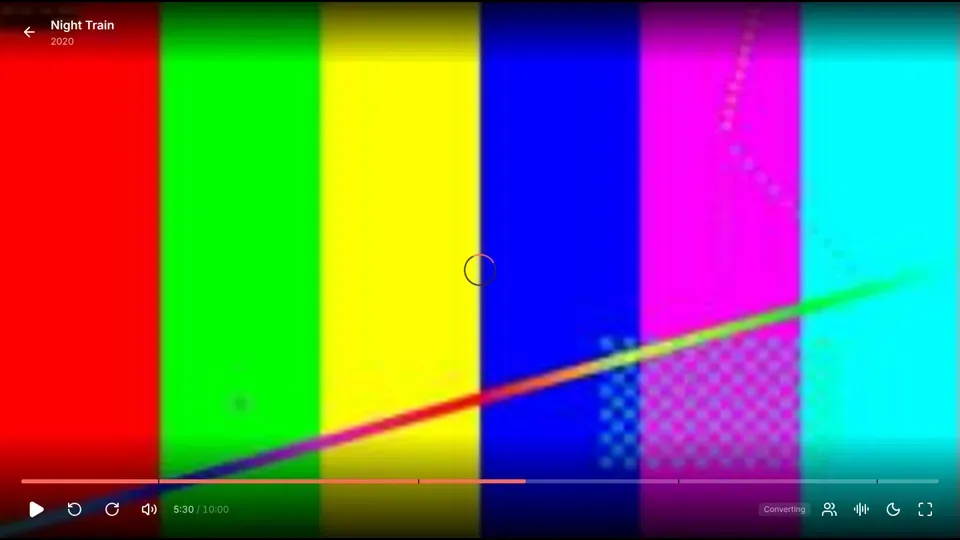
Section titled “Jumping far”When a video is being converted as it plays, a jump past what’s ready has to start the conversion again from the new spot, which takes a moment. From Matinee 0.2.3, instead of going black, the player keeps a picture on screen with a spinner over it until the video carries on: the preview picture of where you’re going, or the last frame that was showing when the video has no previews yet.
On phones and TVs
Section titled “On phones and TVs”In the phone and TV apps (from app version 1.0.23):
- On a phone or tablet, drag along the bar. The picture rides above your finger, and the video jumps there when you let go.
- On a TV, press left or right on the remote, or rewind and fast forward. The picture shows where the presses add up to, and the video jumps there a moment after you stop.
From app version 1.0.32 the apps show the chapter notches and names too, and keep the picture on screen with a spinner after a far jump.
From app version 1.0.34 the TV apps also list the chapters with a picture of each under Chapters, and holding left or right on the remote skips a whole chapter. See Chapters.
Where the pictures come from
Section titled “Where the pictures come from”Matinee makes the pictures itself, a small frame every few seconds of each movie and episode (every 10 seconds for anything over half an hour). It does that in the background once every file is analyzed, at the same gentle pace and lowest priority, and only once per file. A replaced file gets new pictures. HDR videos get pictures in their true colours rather than washed out.
A video someone plays before its turn comes gets its pictures right away, so they’re ready a minute or two in, or the next time it plays. Until a video has them, the bar shows just the time.
The pictures take about 4 MB per movie, in the server’s data folder (under thumbnails). On Kubernetes they go on their own volume, so a restart doesn’t make Matinee start over.
Turning them off or down
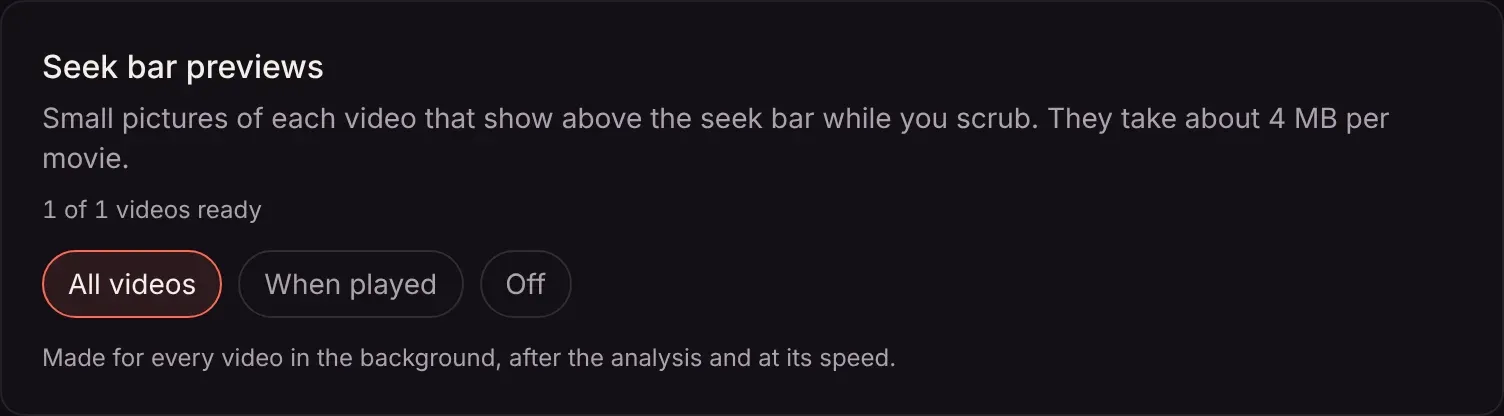
Section titled “Turning them off or down”Admins choose under Settings → Libraries → Media analysis, on the Seek bar previews card:
| Choice | |
|---|---|
| All videos (default) | Pictures of every video, made in the background. The card shows how many are ready. |
| When played | Pictures of a video only the first time someone plays it. Saves time and disk space on a big library you mostly don’t rewatch. |
| Off | No pictures. Players show just the time. Pictures already made stay until a file changes. |
If a video’s pictures look wrong, an admin can open its File details and choose Analyze again: Matinee reads the file once more and makes new ones.