
Podcasts
Matinee can keep your podcasts next to your movies, music and books. Shows come straight from their own feeds, so there’s no account to sign up for and nothing in between: Matinee checks each feed for new episodes every hour and plays them through your server.
Adding a podcast library
Section titled “Adding a podcast library”An admin adds it like any other library: Settings → Libraries → Add a library, pick Podcasts and give it a name. A podcast library doesn’t need a folder. Everyone who can see the library shares its shows, and each person follows the ones they want.
Adding shows
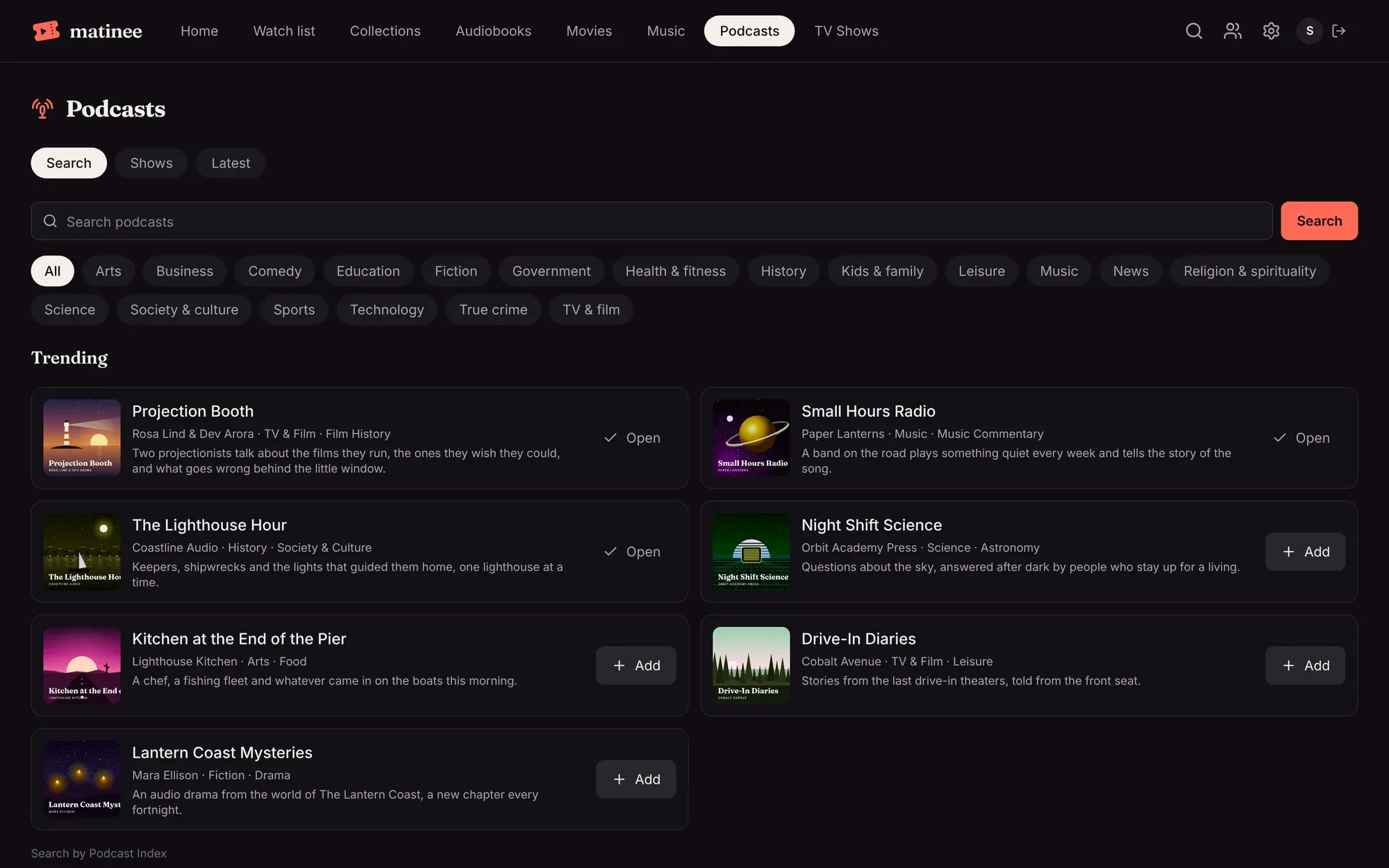
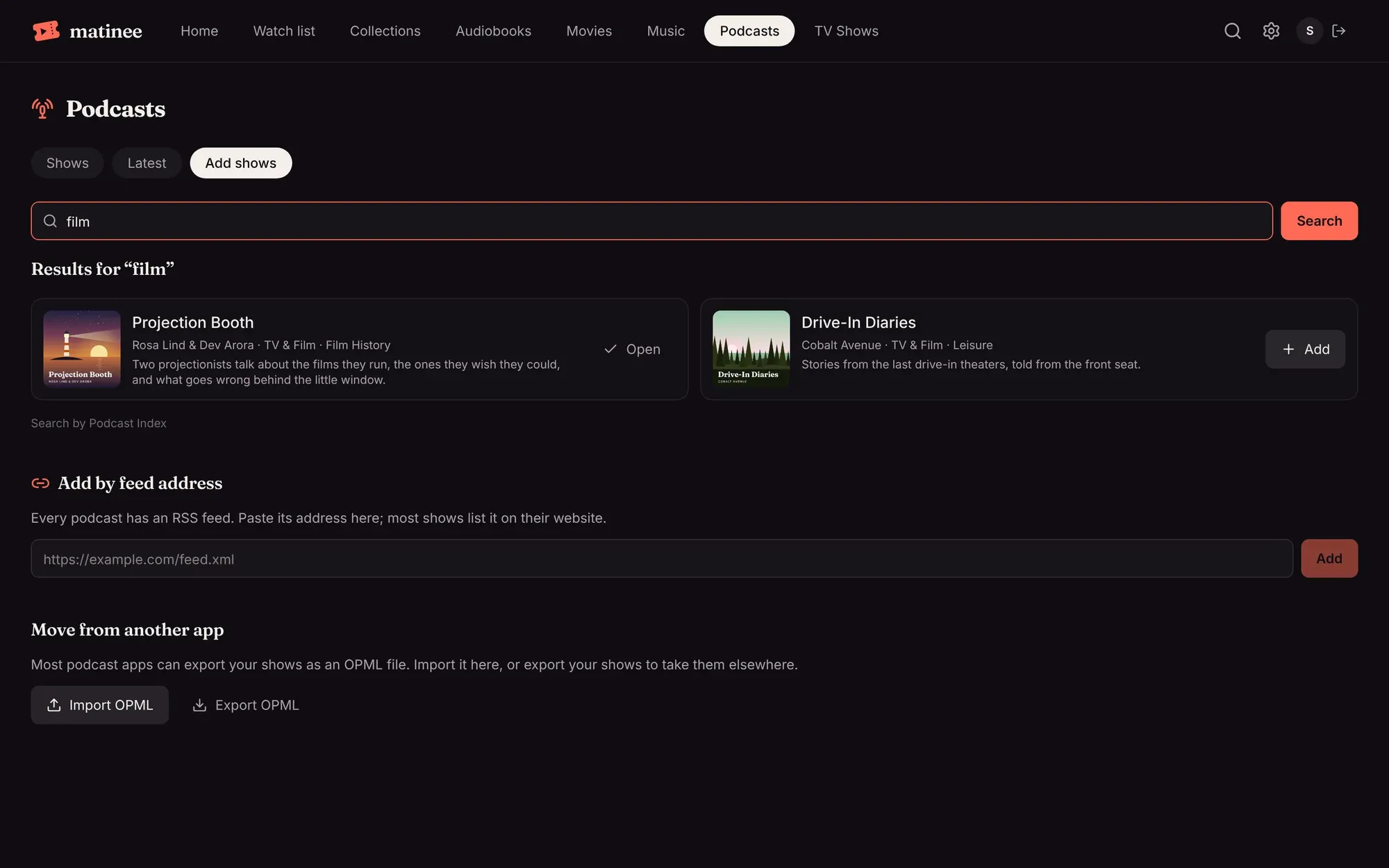
Section titled “Adding shows”Open the library and pick Add shows. From Matinee 0.1.13 that tab is called Search, it comes first, and the library opens on it. Kids profiles, which can’t add shows, open on Shows instead. There are three ways in:
- Search. Type a show’s name, a host or a subject. Before you search, the list shows what’s trending. Searching needs a free Podcast Index key; see Setting up podcast search.
- By feed address. Every podcast has an RSS feed, and most shows list its address on their website. Paste it under Add by feed address. This always works, with or without a key.
- From another app. Most podcast apps can export your shows as an OPML file. Pick Import OPML and Matinee adds and follows every show in it. Export OPML does the opposite, so you can take your shows with you.
Browsing by category
Section titled “Browsing by category”Under the search box sits a row of categories: Arts, Business, Comedy, Education, Fiction, Government, Health & fitness, History, Kids & family, Leisure, Music, News, Religion & spirituality, Science, Society & culture, Sports, Technology, True crime and TV & film. Pick one to see what’s trending in it, in your language, and All to go back to everything that’s trending. Searching shows every match whatever the category, and picking a category again clears the search. Browsing needs the same Podcast Index key as searching.
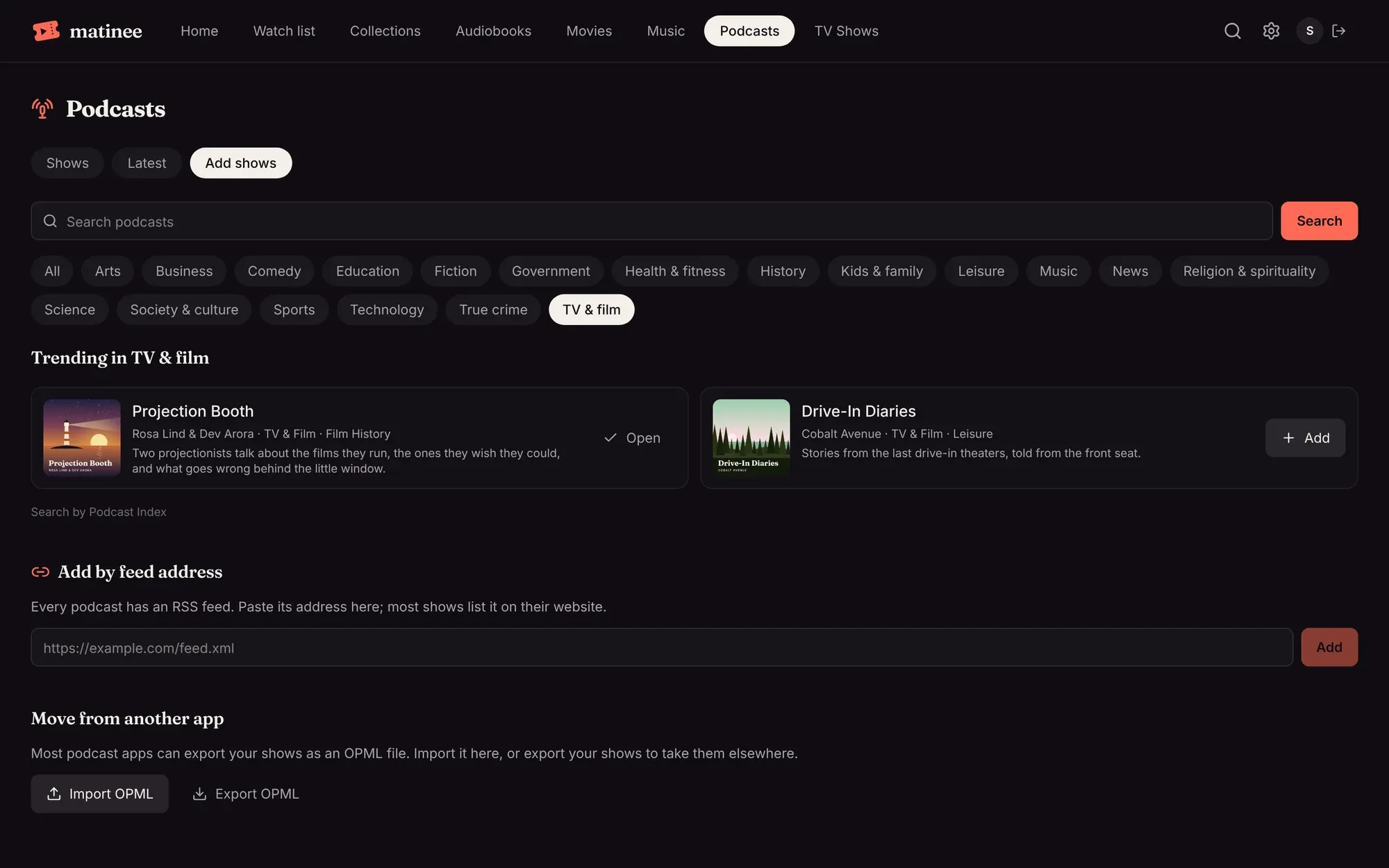
Adding a show follows it for you. Kids profiles can listen to shows that are already in the library, but can’t add new ones. Only an admin can remove a show, which removes it for everyone.
Following and new episodes
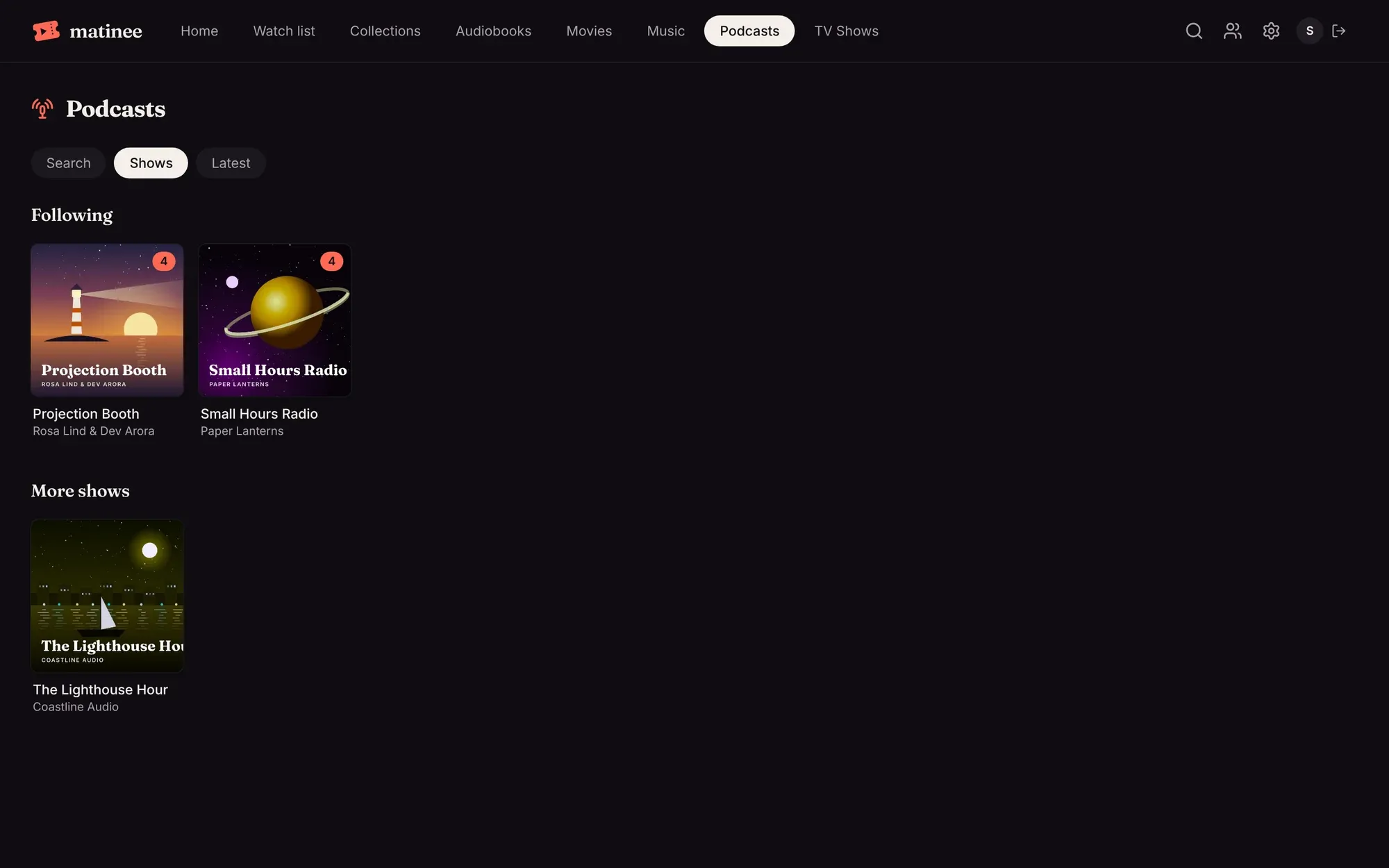
Section titled “Following and new episodes”Shows has your shows: the ones you follow first, with a count of episodes you haven’t played, then More shows that others in the house added. Latest lists the newest episodes across every show.
A show’s page has its cover, its description and a link to its website, then its episodes, newest first. All and Unplayed switch between every episode and the ones you haven’t heard. Newest first turns the list around to Oldest first, for a show that’s told in order. Each show remembers its own order, and with oldest first the big button becomes Play in order: it plays the oldest episode you haven’t heard. Follow and Unfollow decide whether the show is in your list and on Home. The ⋯ button can check the feed for new episodes now, and mark every episode played or unplayed.
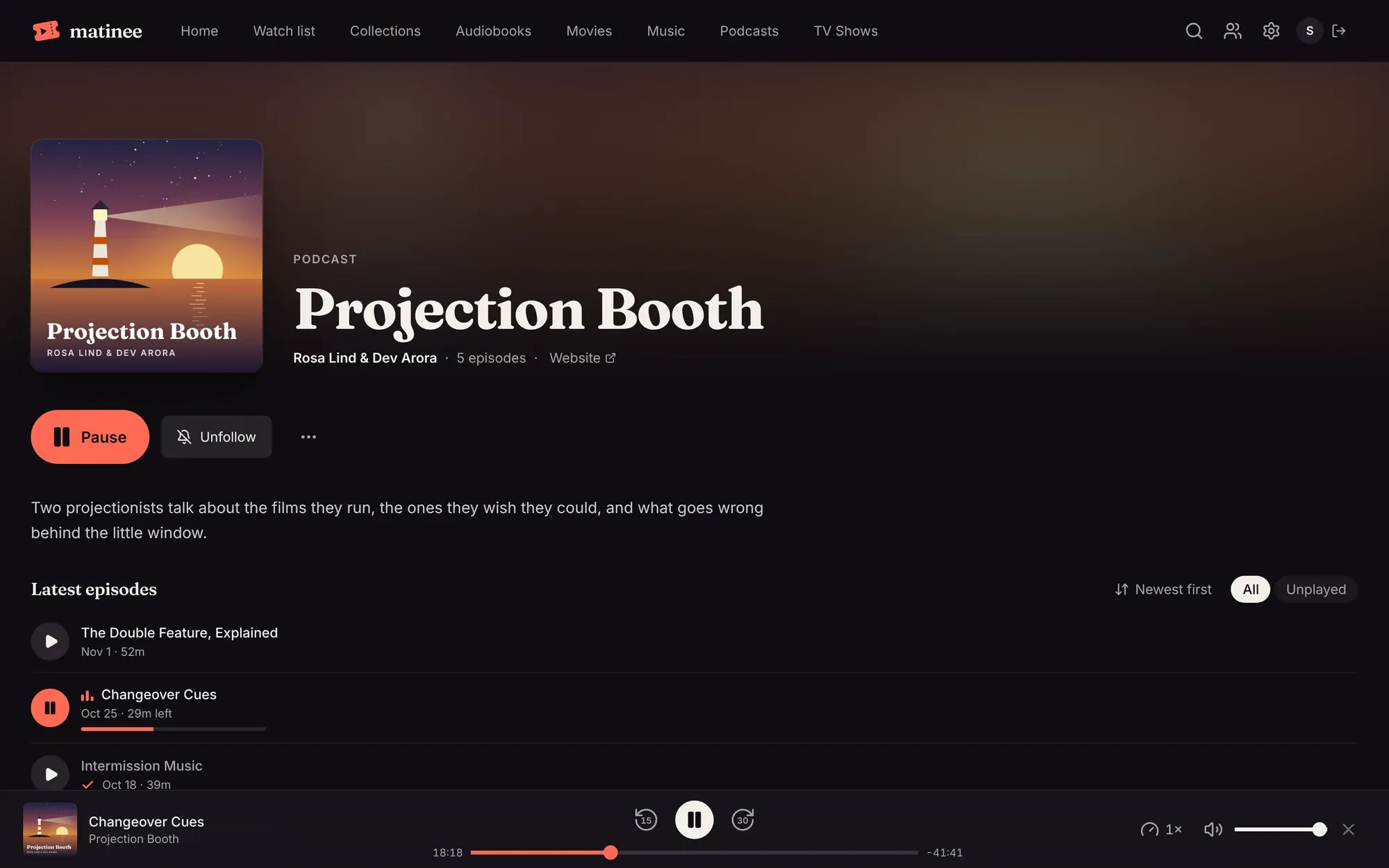
New episodes of the shows you follow from the last two weeks show up in a New episodes row on Home. Trailers aren’t included, and episodes you’ve started or finished drop out of it.
Listening
Section titled “Listening”Click an episode, or Play latest on a show’s page. Episodes play in the same player as audiobooks, along the bottom of every page:
- Back 15 seconds and Ahead 30 seconds.
- Speed, from 0.75× up to 3×, remembered for next time.
- The sleep timer in the full player, which can stop at the End of this episode.
Click the cover for the full player. Where a book has its chapters, an episode has its show notes.
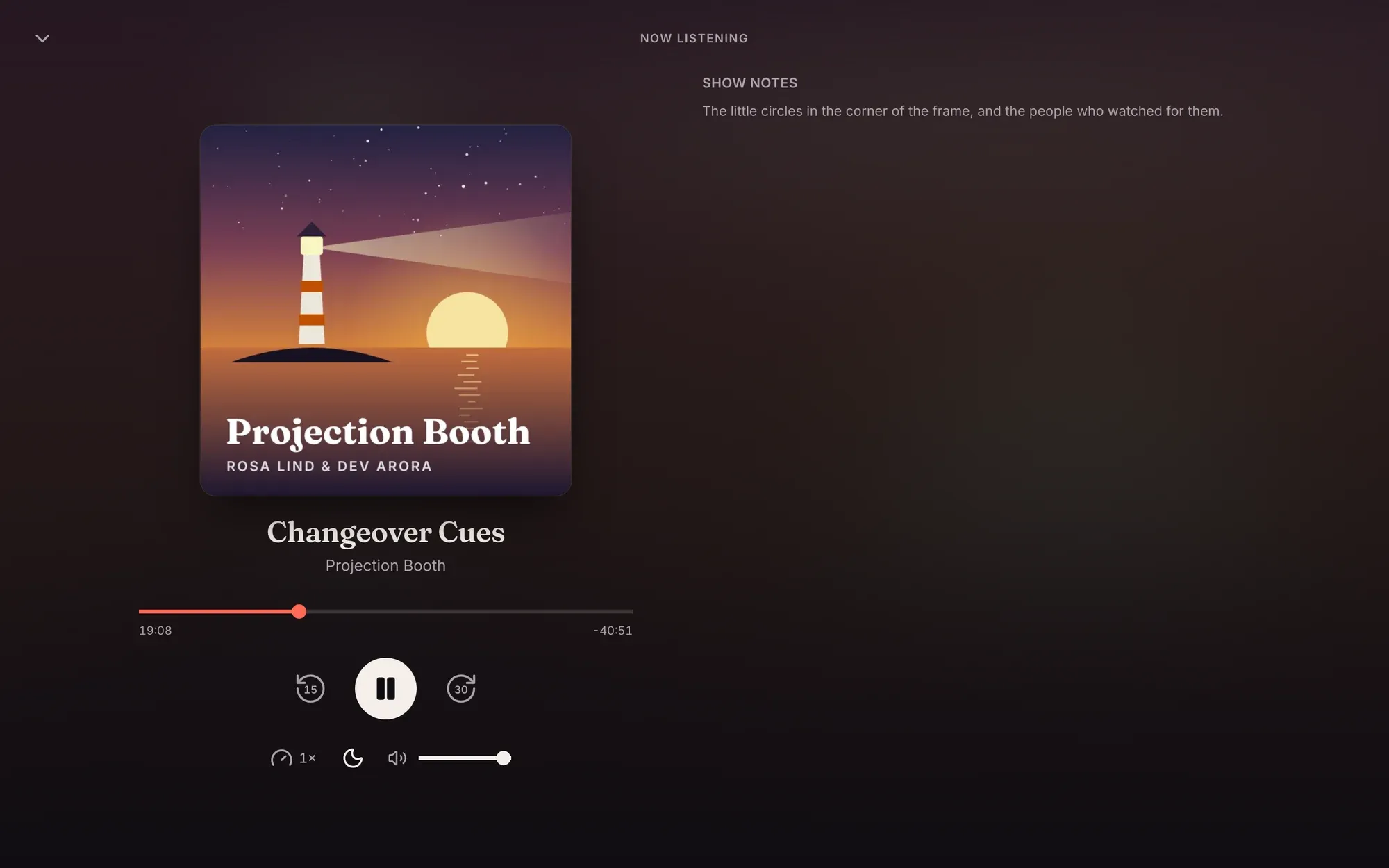
Matinee saves your place while you listen. Episodes you’re part-way through show in Continue listening, and an episode counts as played once you reach its last minute. You can also mark an episode played or unplayed from its page, or a whole show from its ⋯ button.
Playing on to the next episode
Section titled “Playing on to the next episode”When an episode ends, Matinee plays the next one, with a note saying what’s up next:
- The next episode of the same show that you haven’t heard, in the order they came out. Listening to a story from the start carries you through it.
- If you’re caught up on that show, the newest episode from the last two weeks of another show you follow, one you haven’t started.
Trailers never play by themselves. If the sleep timer is set to End of this episode, playback stops there instead. To have each episode stop at its end, turn off Keep playing podcasts under Settings → You → Playback (in the apps, under Settings). The choice is yours, follows you to every device, and the phone and TV apps use it too.
In the apps
Section titled “In the apps”The phone and TV apps have podcasts too.
- On a phone or tablet, a podcast library has Shows, Latest and Add shows, like the browser. From app version 1.0.24 the first tab is Search, and the library opens on it. From app version 1.0.21, Add shows has the same categories to browse. A show’s page has Play latest, Follow, Mark all played, Check for new episodes and its episodes, with Unplayed to hide the ones you’ve heard. An episode’s page can mark it played or download it to listen offline.
- On a TV, a show’s page has Play latest and Follow, and its episodes in a list below. Select one to play it.
Episodes play in the apps’ audiobook player, with the same skips, speed and sleep timer, and the show notes where a book shows its chapters. Your place carries over between the apps and the browser.
From app version 1.0.24, the phone and TV apps also play on to the next episode the same way as the browser, and a show’s page on a phone can list its episodes Oldest first.
Downloading new episodes by themselves
Section titled “Downloading new episodes by themselves”On a phone or tablet, a show you follow can download its new episodes for you, so they’re there on the train with no signal:
- Open the show and tap Download new episodes.
- Turn it on and pick how many Episodes to keep: 1, 2, 3, 5 or 10. It starts at 3.
The phone then keeps the show’s newest episodes that you haven’t played, up to that many. When a new episode comes out, it downloads it and lets go of the oldest one. An episode you’ve played goes, and an older one doesn’t come back to take its place. An episode you’re part-way through stays until you finish it, even once it’s no longer one of the newest. The phone checks when the app opens and whenever it comes back to it.
The choice is saved on your server, so every phone and tablet you’re signed in on downloads the same shows, each on its own. Turning it on follows the show if you didn’t already. Downloads still wait for Wi-Fi unless Settings → Downloads allows mobile data, and they show on the Downloads tab like any other.
Removing played episodes
Section titled “Removing played episodes”Settings → Downloads → Remove played episodes clears a downloaded podcast episode off the phone once you’ve played it, whether you downloaded it yourself or it came by itself. It’s on to begin with; turn it off to keep played episodes until you remove them. Movies, music and audiobooks are never removed this way.
Android Auto, CarPlay and the watches don’t list podcasts yet, but a watch can still pause and skip an episode playing on your phone.
Setting up podcast search
Section titled “Setting up podcast search”Search uses Podcast Index, a free and open directory of podcasts. It needs an API key and secret, which are free:
- Sign up at api.podcastindex.org with your email address. The key and secret arrive by email.
- In Matinee, open Settings → Content → Podcast search.
- Enter the API key and API secret, and click Save key.
Matinee checks the key with Podcast Index before saving it. The key stays on your server, which does the searching; only the covers in the results load from each show’s own host. Podcast Index is only used to find shows. Once a show is added, its episodes come from the show’s own feed.
Feeds on your home network
Section titled “Feeds on your home network”To keep a podcast feed from reaching into your home network, Matinee only fetches feeds and episodes from addresses on the internet. If you host a podcast yourself, on the same network as the server, set MATINEE_PODCASTS_HOME_NETWORK=true (see Configuration).
If a show stops updating
Section titled “If a show stops updating”If a feed can’t be read, the show’s page says so to admins, with the reason, and Matinee tries again on the next hourly check. A show that moved to a new address usually says so in its old feed, and Matinee follows it. If it didn’t, add the show again by its new feed address.