
Moving the database
Your accounts, watch history, ratings, collections and settings live in Matinee’s database: a SQLite file by default, or PostgreSQL. Matinee can move all of it to another database for you, for example when your library outgrows SQLite, or when PostgreSQL should move to a NAS or another server.
It works in any direction:
- SQLite to PostgreSQL
- PostgreSQL to another PostgreSQL, such as from the Helm chart’s bundled database to one on your NAS
- PostgreSQL back to a SQLite file
How a move works
Section titled “How a move works”- Matinee makes its own tables in the new database, with the same schema and upgrades it uses itself, so the new database is exactly what this version of Matinee expects.
- It copies every table as it was at one moment.
- It counts the rows of every table in both databases. If any table differs, nothing is switched over.
- It switches over and opens on the new database.
The copy and its tables go in as one transaction, so a move that fails leaves nothing half done in the new database, and Matinee carries on with the database it had.
The old database keeps all its data. Matinee only adds a note to it saying where the database went, so a Matinee whose settings still name the old database finds the new one. Keep the old database until you’ve changed the settings and you’re happy with the new one.
Before you start
Section titled “Before you start”The new database must be empty:
-
PostgreSQL: make an empty database owned by the user Matinee signs in as. Matinee makes the tables itself. With
psql:CREATE USER matinee WITH PASSWORD 'a long password';CREATE DATABASE matinee OWNER matinee;Its address looks like
postgres://matinee:a%20long%20password@tower.local:5432/matinee?sslmode=disable. Characters such as spaces and@in the password are written as%20and%40. Any recent PostgreSQL works; the Helm chart bundles PostgreSQL 17. -
SQLite: the full path of a file that doesn’t exist yet, on a disk that lasts. Matinee makes it.
In Settings
Section titled “In Settings”Admins move the database in Settings → Server health → Database, which says which database Matinee uses now.
- Pick PostgreSQL or SQLite file and type the new database’s address or file.
- Press Check. Matinee connects to it and makes sure it isn’t the database in use and has none of Matinee’s data yet. Nothing is copied or changed. If something’s wrong, such as a wrong password or a database that doesn’t exist yet, it says so.
- Press Move database. Matinee restarts, moves the database before anything else uses it (so nothing anyone does meanwhile is left behind), and opens on the new one. While it moves, the apps say the server is restarting and the web player shows how many rows are copied. Most libraries take seconds; a big one a minute or two.
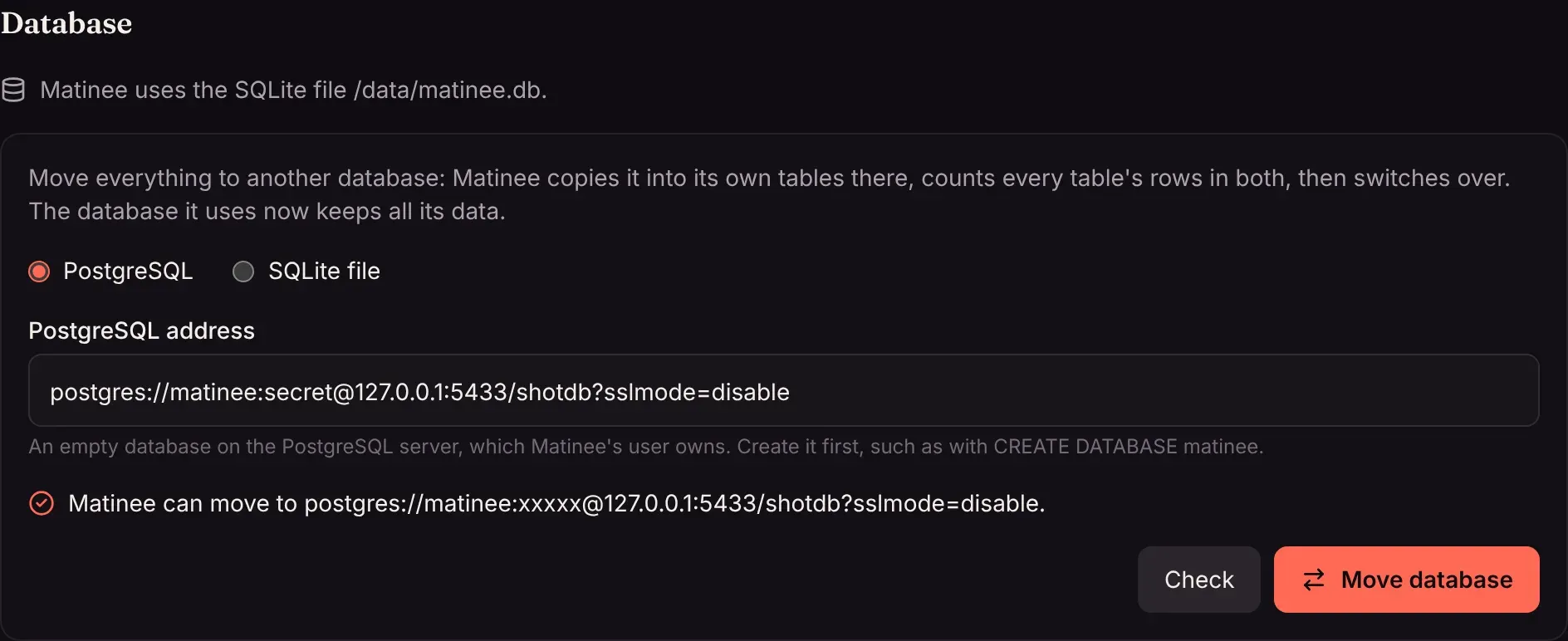
If the server can’t restart itself (the Windows server without the tray app, for example), the move waits for the next time you start Matinee. Cancel move keeps everything as it is until then.
If the move doesn’t work, Matinee keeps using the database it had, unchanged, and Settings says why.
On Kubernetes, the data folder is emptied whenever Matinee’s pod is replaced, so Settings only offers PostgreSQL there.
After the move
Section titled “After the move”Settings then shows where the database came from and how many rows were copied. Until you change the server’s settings to the new database, it also says that they still name the old one: Matinee finds the new database through the note in the old one, so the old one has to stay reachable until you change them.
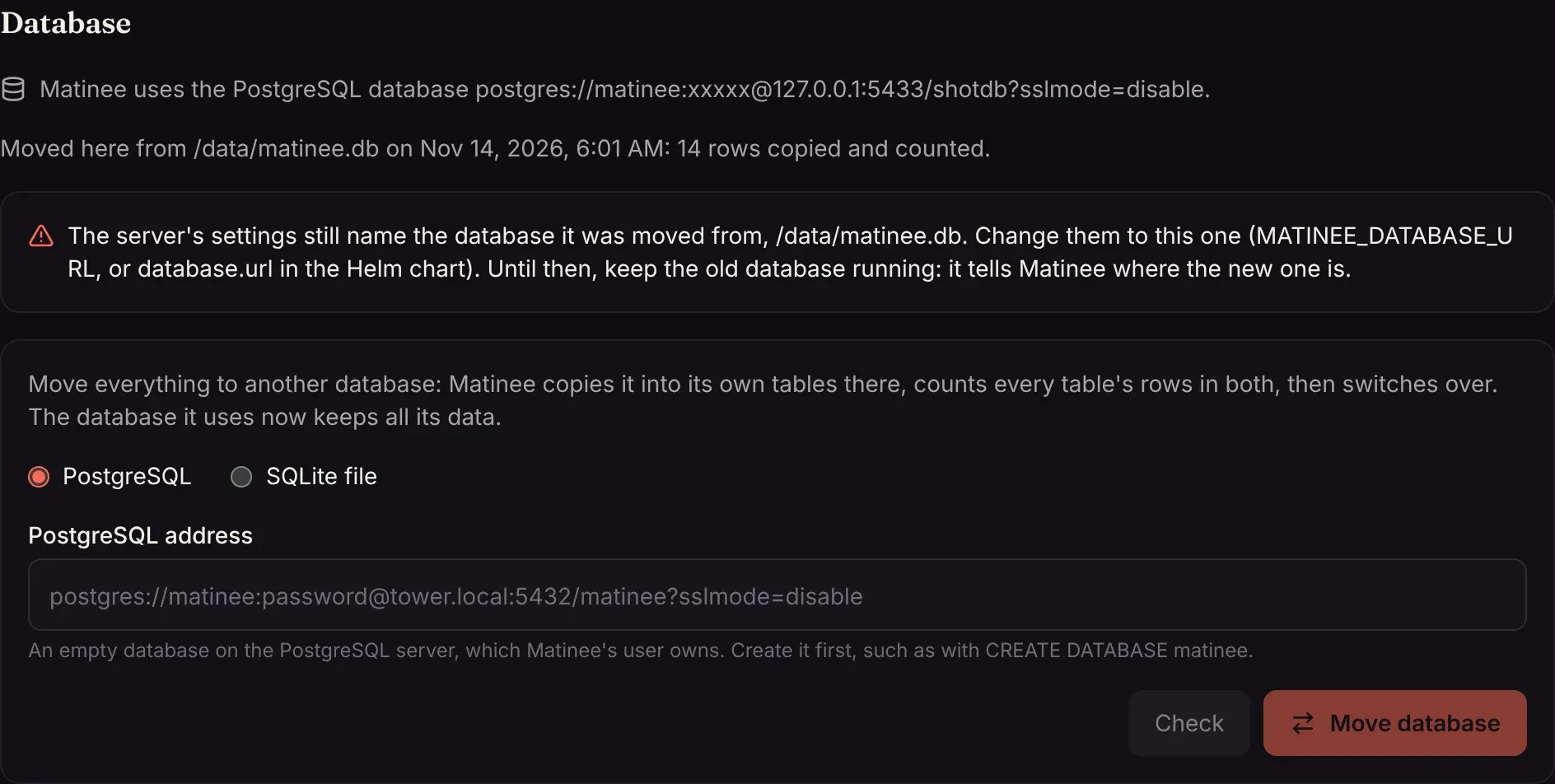
- Docker or a package install: set
MATINEE_DATABASE_URLto the new PostgreSQL address and restart Matinee. For a move to SQLite, takeMATINEE_DATABASE_URLout; Matinee usesmatinee.dbin its data folder. - Kubernetes with the Helm chart: see below.
Once Matinee runs with its settings naming the new database, you can back up the old one and remove it. With SQLite, Matinee backs up the new file by itself; with PostgreSQL, back it up with pg_dump.
On Kubernetes
Section titled “On Kubernetes”To move from the chart’s bundled PostgreSQL to one somewhere else, such as a PostgreSQL container on your NAS:
-
Make an empty database there, as above, that the cluster can reach.
-
Move to it in Settings → Server health → Database. Matinee’s pod restarts in place and opens on the new database.
-
Change the chart’s values to the new database, and turn the bundled one off:
postgresql:enabled: falsedatabase:# or existingSecret: a Secret with the address under "database-url"url: postgres://matinee:password@tower.local:5432/matinee?sslmode=disableWith Argo CD, commit that and let it sync. Matinee restarts on the new database directly.
-
The bundled database’s volume is kept when the chart turns it off. Delete it once you’re happy, such as with
kubectl delete pvc data-matinee-postgresql-0(the name follows your release).
From the command line
Section titled “From the command line”matinee database does the same with the server stopped, which suits a server you can’t reach in a browser, or a script:
matinee database wherematinee database move --to 'postgres://matinee:password@tower.local:5432/matinee?sslmode=disable'Stop the Matinee server first: anything it writes during the move isn’t copied. Give the same settings the server uses, such as --data /data or MATINEE_DATABASE_URL, so the command finds the database it uses now. It prints each table’s rows once they’re checked:
Moving /data/matinee.db to postgres://matinee:xxxxx@tower.local:5432/matinee?sslmode=disable table rows collections 3 credits 48211 items 31877 ...Copied 214562 rows in 41 tables in 8.4s; every table has the same number of rows in both.--copy-only copies and checks without switching over, to try a move first. In Docker, run it in a stopped container’s place with the same volumes and environment, such as docker compose run --rm matinee database move --to ….
Going back
Section titled “Going back”matinee database undo-move takes the note out of the old database, so Matinee uses it again. Anything that changed in the new database since the move isn’t in the old one; the new database is left as it is.