
Windows
Matinee has an installer for Windows 10 and 11. It brings everything Matinee needs, FFmpeg included, and runs the server from an icon in the notification area, next to the clock.
Install
Section titled “Install”- Download the installer for your PC:
- Matinee-Setup-x64.exe for most PCs (Intel and AMD).
- Matinee-Setup-arm64.exe for Arm PCs, such as Snapdragon laptops. Settings → System → About says which one you have under System type.
- Open it and follow the steps. Windows asks for permission to install, since Matinee goes in Program Files for everyone on the PC.
- Leave Start Matinee ticked on the last page and click Finish.
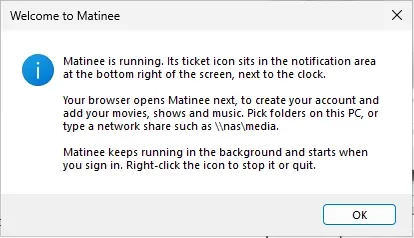
Matinee says hello, then opens in your browser to create the admin account and add your libraries.
The Matinee icon
Section titled “The Matinee icon”Matinee’s ticket sits in the notification area. If you don’t see it, click the ^ arrow next to the clock, and drag it out to keep it in view. The ticket is coral while the server runs and gray while it’s stopped. Click it for the menu:
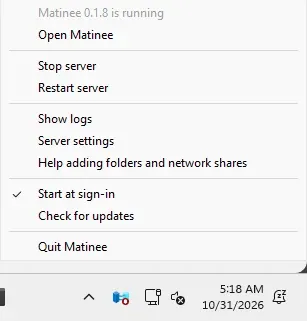
| Open Matinee | Opens Matinee in your browser, at http://localhost:7171. |
| Stop server, Start server | Stops the server without quitting, or starts it again. Phones and TVs can’t reach it while it’s stopped. |
| Restart server | Stops and starts it, for example after changing its settings. |
| Show logs | Opens the server’s log, which helps when something’s wrong. |
| Server settings | Opens matinee.env, the settings file. |
| Start at sign-in | Starts Matinee whenever you sign in to Windows. It’s on to begin with. |
| Check for updates | Looks for a newer Matinee. See Updates. |
| Quit Matinee | Stops the server and removes the icon. Open Matinee from the Start menu to start it again. |
If the server stops by itself, Matinee starts it again. If it keeps stopping, the menu says Matinee stopped: see the logs, and Show logs says why. Most often another program already uses port 7171; change MATINEE_ADDR in the settings to use another one.
Folders and network shares
Section titled “Folders and network shares”The server runs as you, so it reads the same folders you can open in File Explorer.
- Folders on this PC and USB drives: in the folder picker, go up to Drives and pick a drive, then the folder.
- Network drives (a share mapped to a letter, like
M:): they’re listed with the other drives. - Network shares without a letter: type the share’s address into the box under the folder picker, such as
\\nas\mediaor\\192.168.1.20\movies, and press Go. Browse from there.
If a share asks for a password, open it once in File Explorer and tick Remember my credentials. Matinee uses the passwords Windows remembers for you.
Matinee only runs while you’re signed in to Windows. On a PC that stays on for the household, use Settings → Accounts → Sign-in options to sign back in automatically after an update restarts it, or install Matinee on a NAS or Linux box with the other installs.
Phones, TVs and other computers
Section titled “Phones, TVs and other computers”The installer lets Matinee through Windows Firewall on private networks, so the apps on your home Wi-Fi find it. Windows treats new networks as public, which keeps Matinee closed on them. If the apps don’t see the server, open Settings → Network & internet, click your network, and pick Private network.
To reach Matinee away from home, see Remote access.
Settings
Section titled “Settings”Server settings live in %LOCALAPPDATA%\Matinee\matinee.env (Server settings in the menu opens it). Put one setting per line, like MATINEE_SERVER_NAME=Living room PC, then choose Restart server. Configuration lists them all.
| Program | C:\Program Files\Matinee, with FFmpeg in its ffmpeg folder |
| Library, accounts, artwork | %LOCALAPPDATA%\Matinee |
| Log | %LOCALAPPDATA%\Matinee\Logs\matinee.log |
| Settings | %LOCALAPPDATA%\Matinee\matinee.env |
To back up Matinee, quit it and copy %LOCALAPPDATA%\Matinee, as in Updating and backups.
Updates
Section titled “Updates”Matinee checks for a new version when it starts and once a day. When there is one, the menu shows Install Matinee and the new version. Click it, say Yes, and allow the installer: Matinee stops for a minute, updates, and starts again. Players pick up where they were.
You can also download the newest installer from this page and run it over the old one. Your library and settings stay.
Uninstall
Section titled “Uninstall”Open Settings → Apps → Installed apps, find Matinee, and choose Uninstall. It asks whether to delete your library, accounts and settings too; say No to keep them for a later install. Your media files are never touched.