
Server health
When something isn’t working, Settings → Server health is the place to start. It’s for admins, and it shows in one page what the server is doing right now and what has gone wrong lately. It updates every 5 seconds.
Everything on it comes from your own server. Nothing is sent anywhere.
To be told when something goes wrong instead of checking, set up alerts further down the same page.
At the top
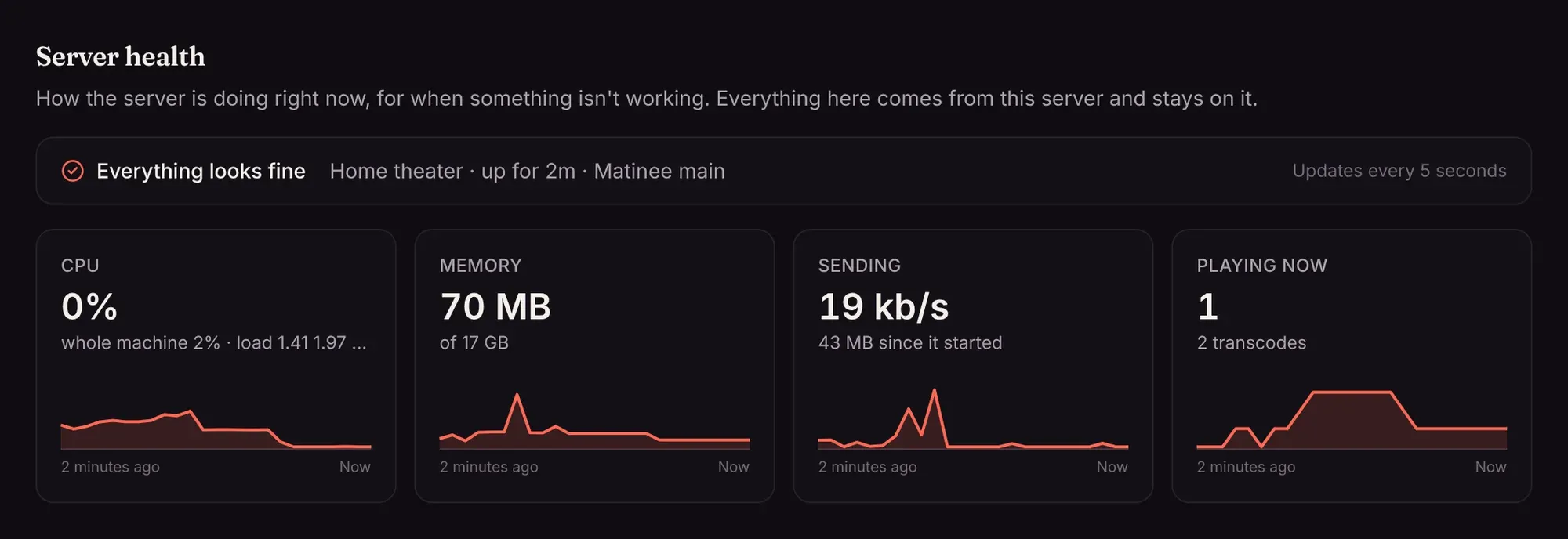
Section titled “At the top”A line says whether all looks well, or how many warnings and errors there were in the last hour, along with how long the server has been up and its version. It also calls out the bigger problems first: a database that doesn’t answer, a folder that can’t be read, or a server that’s restarting.
When the server can’t reach the internet, a line under the status says No internet connection and for how long, and which sites aren’t answering. Lookups that wait for it aren’t listed as problems. See When the internet is down.
Below it are four readings, each with a chart of the last hour. Point at a chart to see the value at that moment.
| Reading | What it shows |
|---|---|
| CPU | How much of the machine’s processors Matinee uses, with the whole machine’s use and load average next to it where the system reports them. |
| Memory | How much memory Matinee uses, out of the machine’s memory or the container’s limit. |
| Sending | How fast the server is sending right now, and how much it has sent since it started. Video is most of it. |
| Playing now | How many players are playing, and how many transcodes are running. |
On Linux, including Docker and Kubernetes, CPU and memory include the FFmpeg processes Matinee runs to convert video, so a busy transcode shows up there. On a Mac or Windows they count the server alone. Hover over the reading to see which.
Restart the server
Section titled “Restart the server”Restart server, at the top right of Server health, stops Matinee and starts it again. It’s there for when something seems stuck, to finish restoring a backup, or to switch to a new time zone.
Matinee asks first, and says how many streams are playing. It restarts the same way it does for an update: anyone watching or listening sees that the server is restarting, and their player picks up where it was once it’s back, usually within a few seconds. Server health waits for it and says when it’s back. If it isn’t back after two minutes, the page says so; look at the server’s log, or start it again the way you installed it.

Matinee starts again with the same settings it started with. To pick up a change to its environment variables, such as in matinee.env or your docker-compose.yml, restart it the way you installed it instead: sudo systemctl restart matinee, brew services restart matinee, Restart server in the Mac app’s menu, or recreating the container.
The button is there on Linux, macOS, Docker and Kubernetes, and on Windows when the Matinee tray app runs the server.
Playing now and transcodes
Section titled “Playing now and transcodes”Playing now lists every player that has something open: who, on which device and app, how far along, and whether it plays the file directly or the server is converting it. Players away from home are marked.
When a stream stopped to buffer in the last few minutes, it says why under the title: the server read the file slowly, converted slower than real time, or the connection was slower than the video. See Why it buffered.
Transcodes lists what FFmpeg is working on: the title and who it’s for, whether it converts the picture or only repackages it, whether the GPU does the work (and how much of it), the quality, and whether subtitles are drawn into the picture. Below the list is the GPU new transcodes use, as in Settings → Streaming → Transcoding.
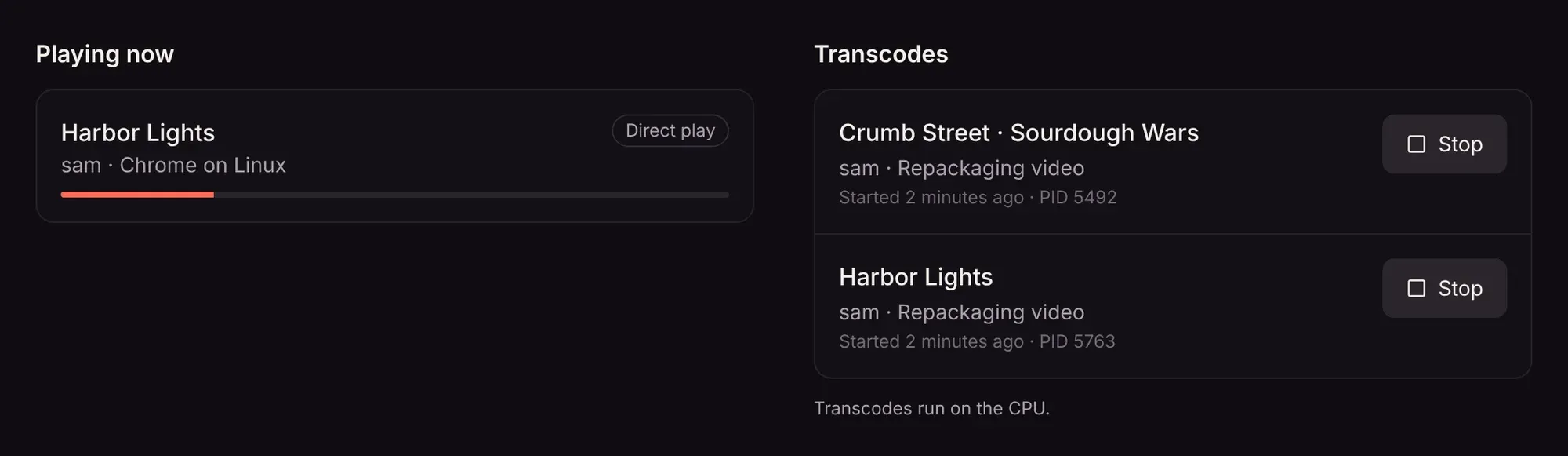
Under the list is the room transcodes have left. When long videos don’t fit, it turns into a warning and those transcodes are marked short of room: they keep only the minutes around where they play. It also warns when a video couldn’t play for lack of room in the last half hour. See When the transcode folder runs short of room.
Stop ends a transcode that’s stuck. If the player is still open, it asks for a new one when it carries on, so stopping is safe.
Warnings and errors
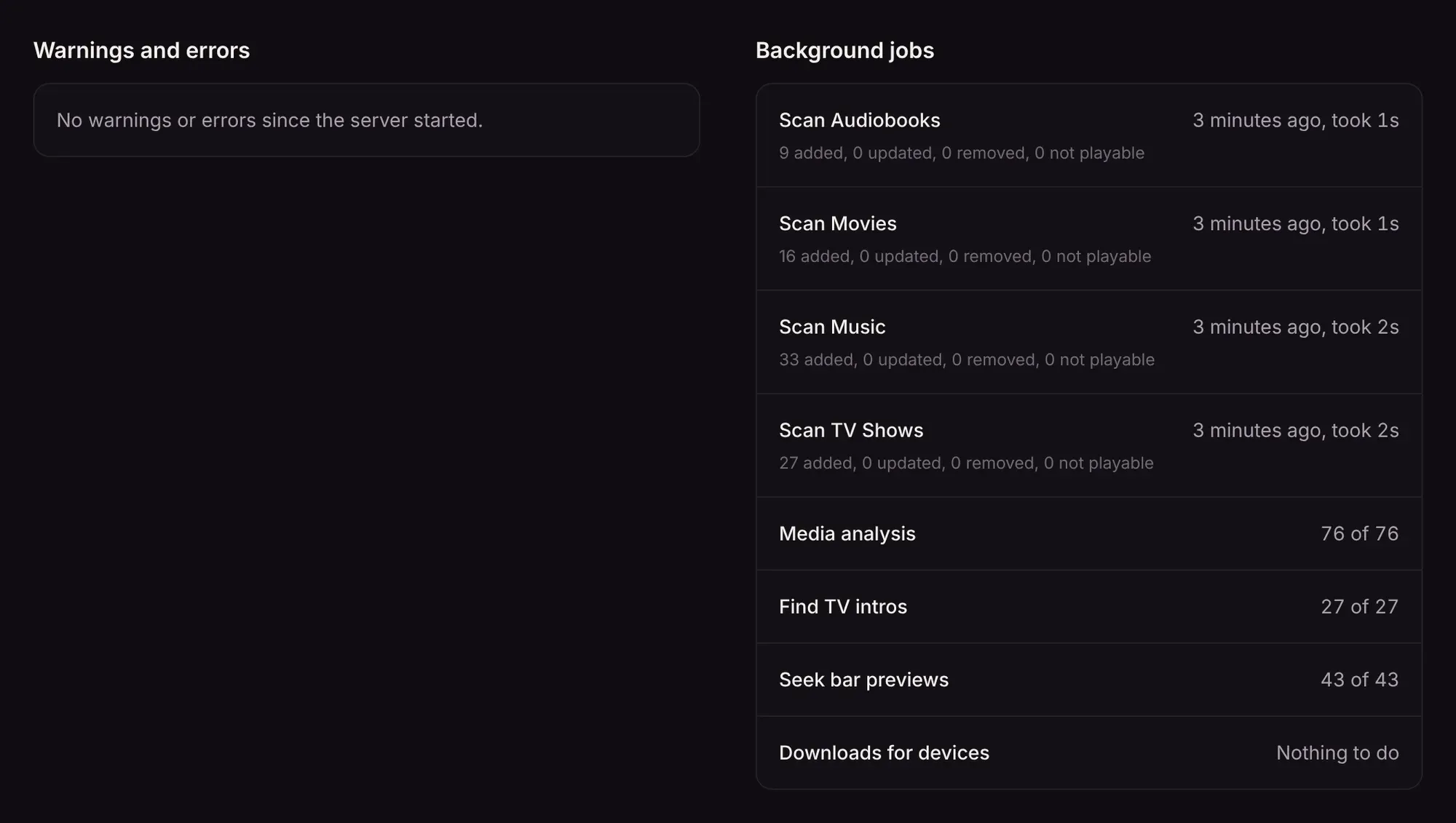
Section titled “Warnings and errors”The same warning or error is listed once, with how often it happened and when it last did. Click one to see its details, and Show in log to find it in the log below with everything that happened around it.
The list starts empty each time the server starts.
Background jobs
Section titled “Background jobs”-
Scan for each library: whether it’s being scanned now, and how the last full scan since the server started went (how long it took, what it added, updated and removed, and files that couldn’t be played). It also says what started the scan: the scheduled full rescan, new or changed files in a watched folder, someone pressing Scan, or the server itself (say, for a library just added). Stop scan stops one that’s running; see Stopping a scan.- Media analysis, Find TV intros and Seek bar previews: how far they are. See Media analysis.
-
Find end credits sits with them, and how far it is.
These jobs take turns: Matinee analyzes every file first, then looks for intros, then end credits, then makes seek bar previews. Only the one working now has the pulsing dot, with the title it’s on under it. So Media analysis 11,055 of 11,055 with no title means it’s finished, even while seek bar previews are still being made. Waiting for playback to finish shows under the job that’s next in line.
-
Downloads for devices: downloads waiting to be converted, being converted, and ones that failed.
-
Importing watch history, while an import runs.
-
Videos that couldn’t be read: videos the seek bar previews couldn’t be made of, by title, each linking to its page (hover for the file’s path). They’re most likely damaged, such as a download whose end was never written. A video lands here when making its previews failed twice in a row (one failure may be its share reconnecting, so it’s tried again later), or timed out while its network share was answering and jumping around in it timed out too (a video whose end alone can’t be read keeps its previews up to there); a timeout while the share isn’t answering, or in a video whose jumps come back quickly, doesn’t count, so a share that drops or slows for a while doesn’t put good files here. A video also lands here when its share stops answering three times in a week while it’s being read: some damaged files make the server stall on them, which takes the whole share down for everyone, so Matinee leaves them alone until the file changes or you use Analyze again on its page. Replace them, for example by having Box Office or Radarr grab them again; each one is tried again once its file changes. With Box Office connected and Replace damaged videos by themselves turned on, a video that kept timing out is reported to it by itself, and it gets another copy (see Problems Box Office fixes by itself).
Disk space
Section titled “Disk space”Free space on every disk the server uses: its data folder (with the database, if it’s SQLite), the transcoding scratch space, seek bar previews, posters and artwork, downloads, and each library folder. Folders on the same disk are listed together, and a disk turns red when it’s nearly full.
A library folder that can’t be read is called out. That’s usually a network share that has dropped, so check the share is still connected and mounted.
Server details
Section titled “Server details”The version, FFmpeg’s version and where it is, the operating system, when the server started, the database (SQLite or PostgreSQL, its size and how quickly it answers), how many requests the server has answered and how many failed, scheduled rescans, remote access, and a few numbers about the server process for bug reports.
The log
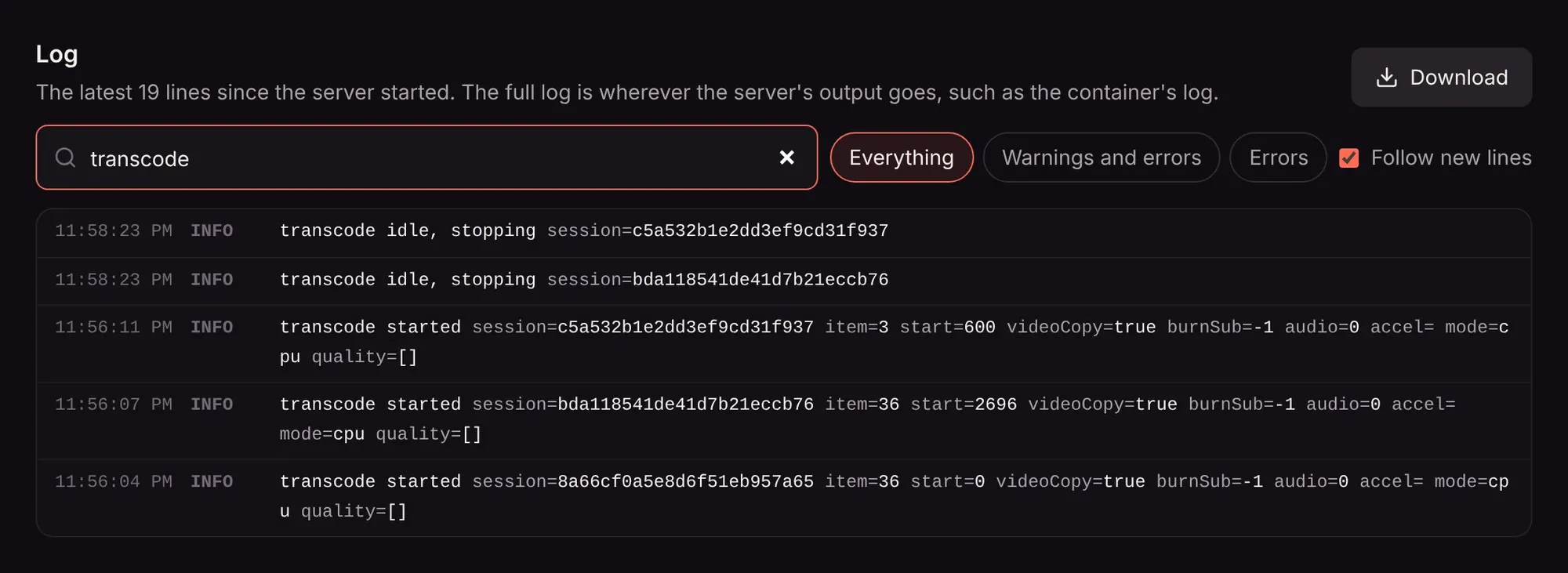
Section titled “The log”The page keeps the latest 5,000 lines the server has logged since it started. Search them, show only warnings and errors, or only errors, and turn off Follow new lines to stop the list from moving while you read.
Download saves the lines you’re looking at as a text file, which is the thing to attach to a bug report.
Earlier runs and crashes
Section titled “Earlier runs and crashes”Each time the server runs, it also saves its log to the logs folder in its data folder, as it goes. So when the server crashes, is killed for using too much memory, loses power or is replaced by a new container, its last lines are still there after it comes back.
When the server has run more than once, Run above the log picks which run to read: This run, or an earlier one by when it started, with whether it stopped cleanly, crashed or stopped unexpectedly, and how many errors it logged. An earlier run shows when it started and ended, its version, and the machine or pod it ran on. If it crashed, what the server printed as it crashed comes first: the first lines say what went wrong and where. Search, the level buttons and Download work on an earlier run too, and its download ends with the crash.
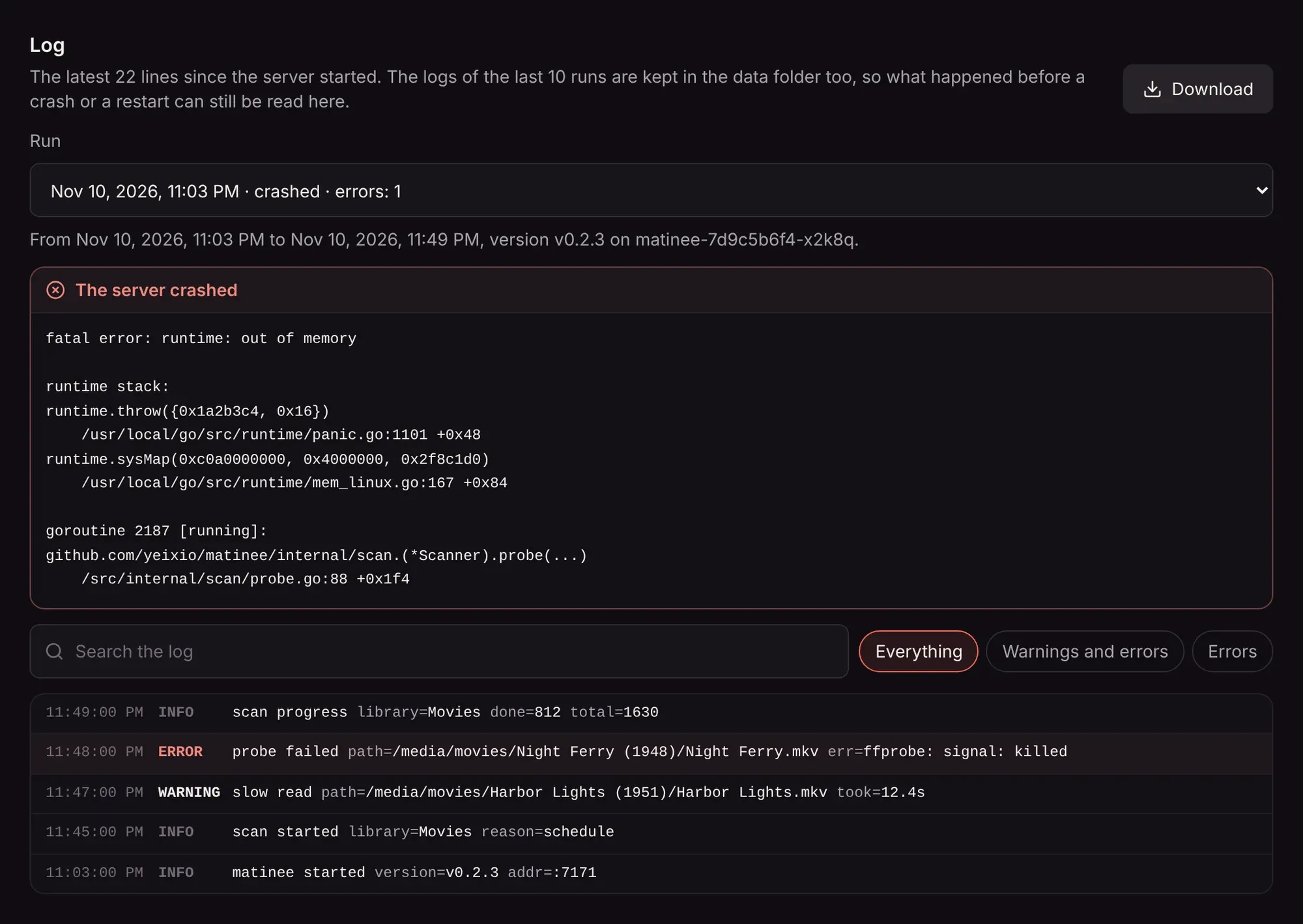
The last 10 runs are kept, each up to about 32 MB (when a run logs more, its oldest lines go first). The restart alert points here when the server stopped without shutting down cleanly.
On Kubernetes, the Helm chart keeps the logs folder on a volume of its own (logs.persistence, see Kubernetes), so a new pod sees the logs of the pods before it. With Docker, it’s in the data folder you mounted (./data/logs in the example docker-compose.yml).
The full log is wherever the server’s output goes: docker logs matinee with Docker, kubectl logs on Kubernetes, journalctl -u matinee with a Linux package, and Show log in the menu of the Mac and Windows apps. Set MATINEE_DEBUG=1 to log more detail, including every request; the page keeps those lines too.