
Audiobooks
Audiobooks get a library of their own. Once an admin adds one, everyone in the house can browse their books by author, series and narrator, and listen with the controls a long book needs: chapters, skipping back and ahead, the speed, and a sleep timer. Matinee remembers where each person is in every book.
Adding an audiobook library
Section titled “Adding an audiobook library”An admin adds it like any other library: Settings → Libraries → Add a library, pick Audiobooks, and choose the folder your books are in. Matinee reads books in either form:
- One file per book, such as an
.m4bwith its chapters marked inside. The chapters come from the file. - A folder per book with a file per chapter or per disc (
.mp3,.m4a,.flacand the other audio files Matinee plays). Each file is a chapter, in the order of their track numbers or file names.
See Organizing your media for the folder layout.
Browsing
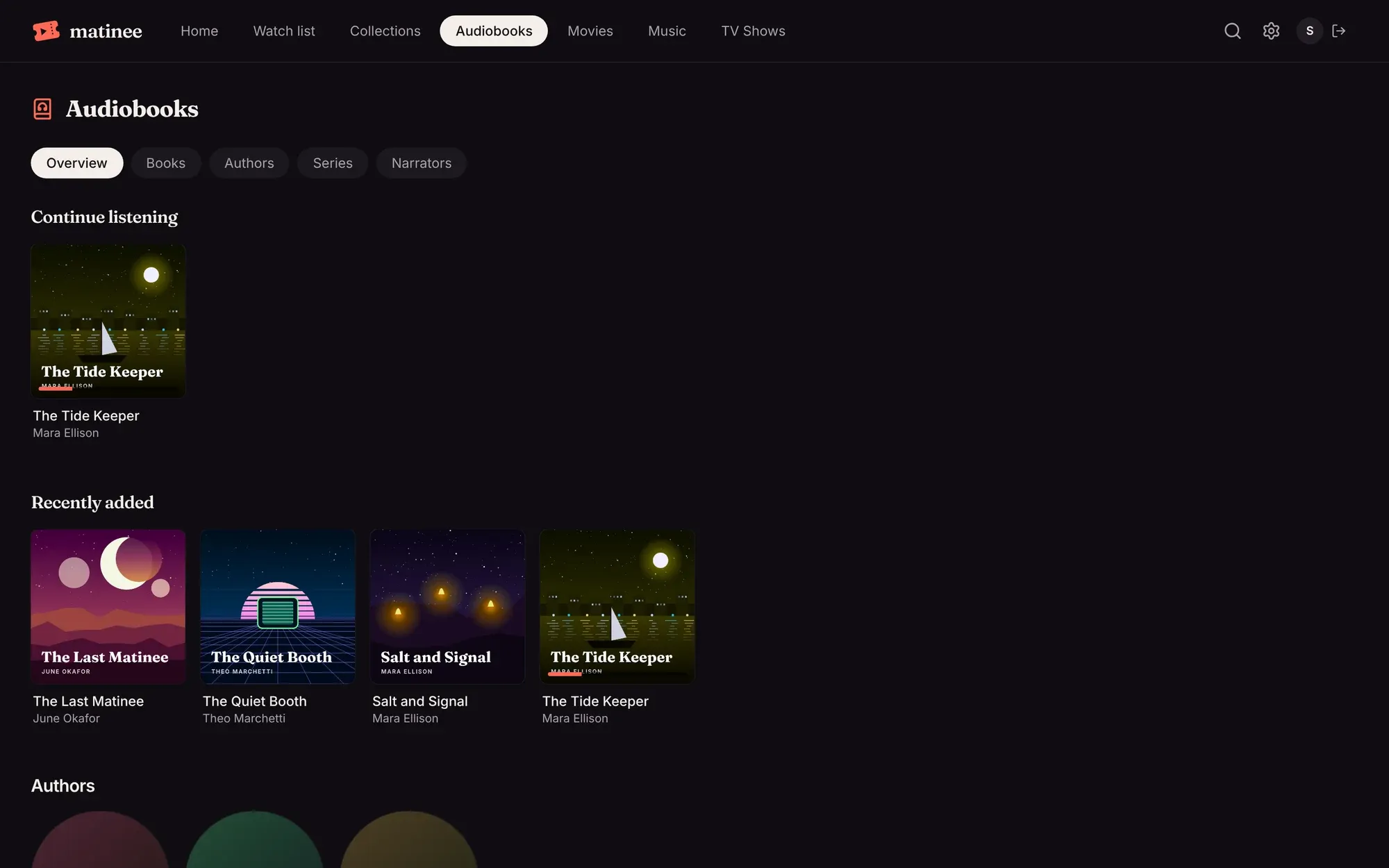
Section titled “Browsing”An audiobook library opens on an overview: books you’re in the middle of, books added lately, and the authors. The tabs along the top list every Book and Author, every Series, with its books in reading order, and every Narrator.
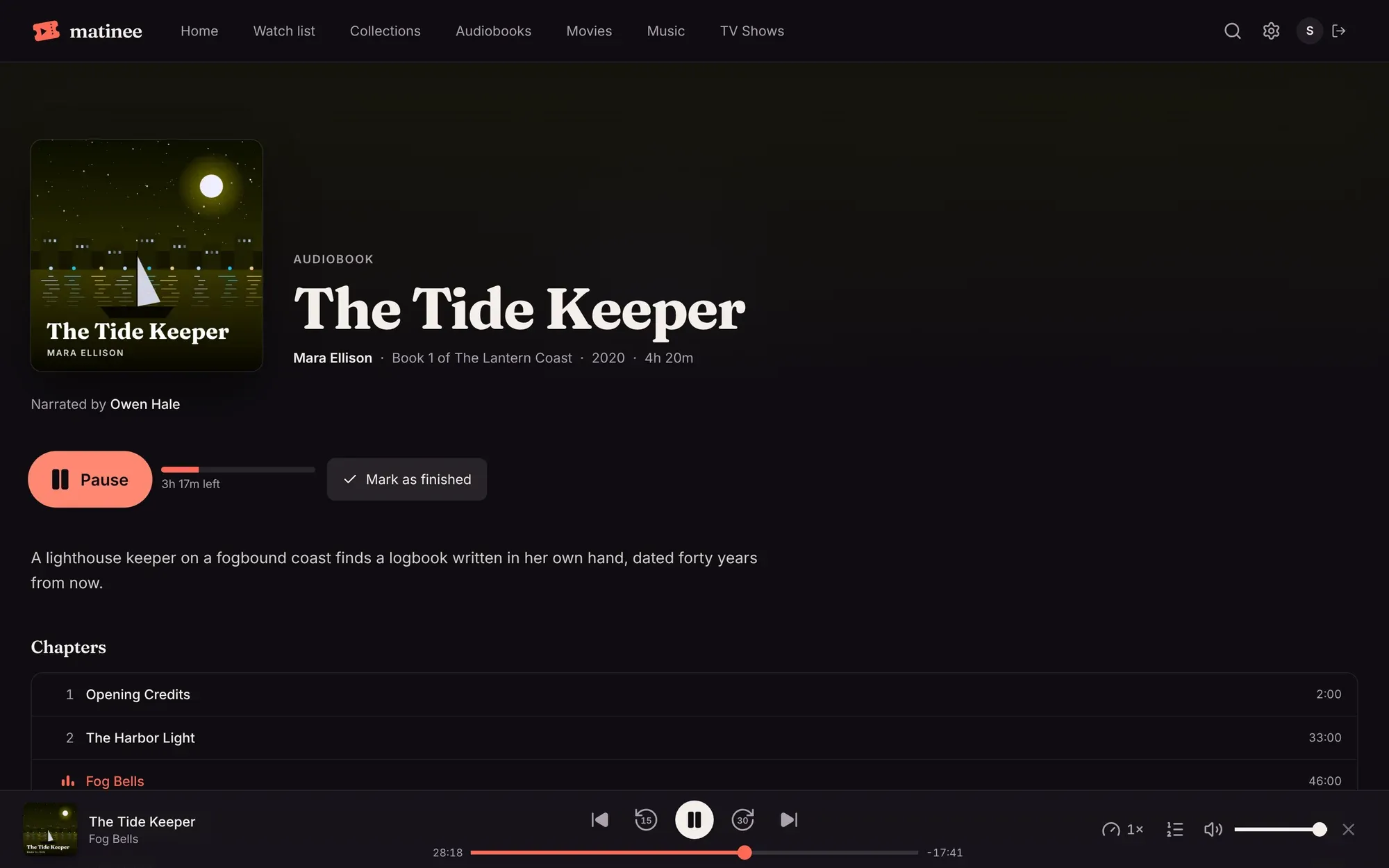
A book’s page has its cover, the author, its place in a series, who reads it, how long it is, and its chapters. Click Play, or Resume to pick up where you stopped, or any chapter to start there. Mark as finished moves a book you’re done with out of the way; Mark as not finished brings it back. Below the chapters are the other books in the series and by the same author.
An author’s page lists their books, series by series, each in reading order.
Listening
Section titled “Listening”The player sits along the bottom of every page, so the book keeps playing while you look around. It shows the chapter, how much of it is left, and the buttons you’ll use most:
- Back 15 seconds and Ahead 30 seconds.
- Previous chapter goes to the start of this chapter, or to the one before if it only just began. Next chapter goes to the next one.
- Speed plays the book from 0.75× up to 3×, and is remembered for the next book. The time left counts the speed in.
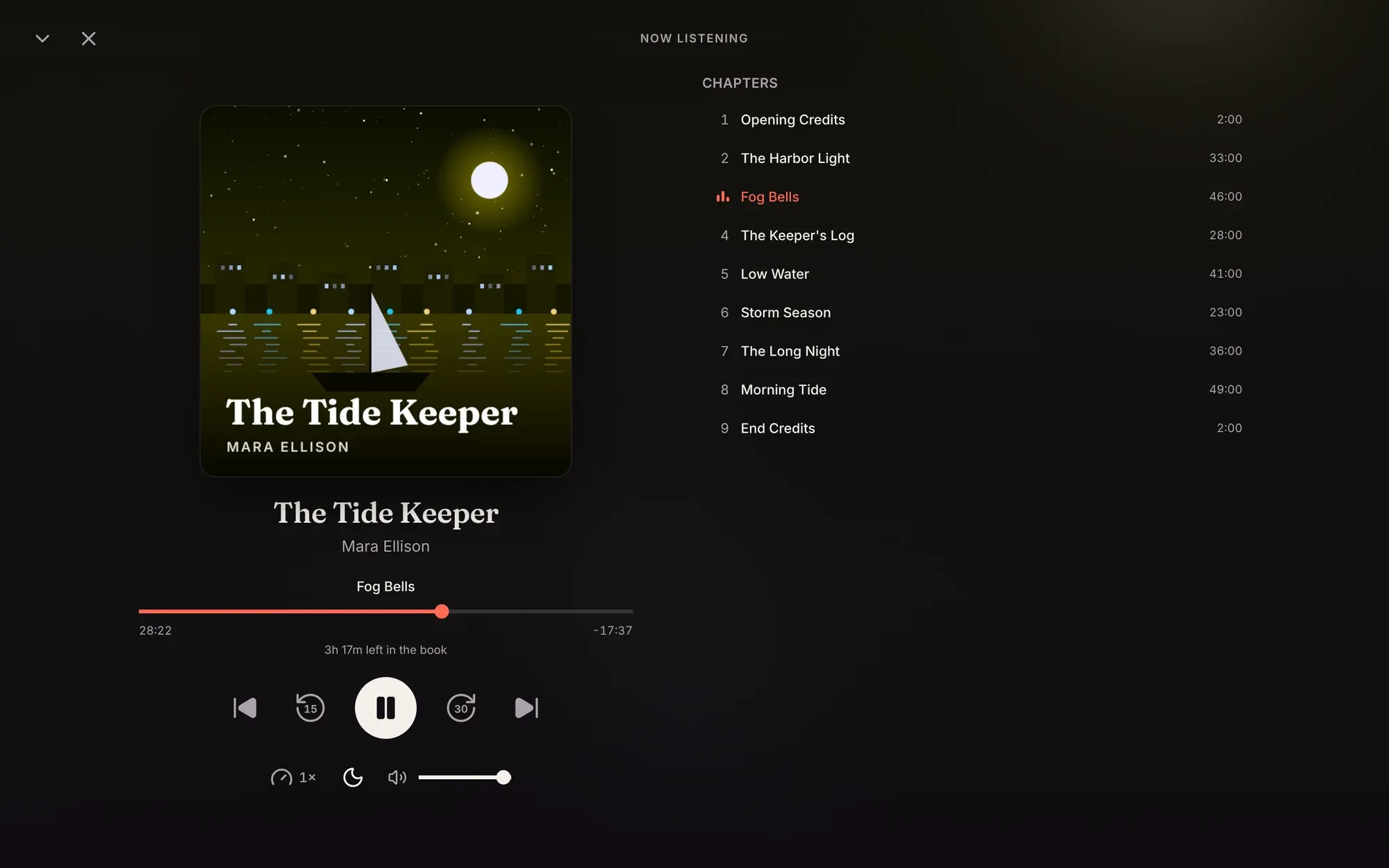
Click the cover for the full player: the cover large, the chapter’s progress, how long until the end of the book, the speed and the sleep timer, and the list of chapters to jump to.
The media keys on your keyboard and headphones work too, and on a phone’s lock screen, back and ahead skip within the book.
To stop listening and put the player away, click × at the right end of the player (next to play on a phone), or at the top left of the full player. Your place in the book is saved first.
Picking up where you left off
Section titled “Picking up where you left off”Matinee saves your place in a book while it plays, when you pause, and when you close the page, so you can start in the browser and carry on from the apps. Books you’re listening to show in Continue listening at the top of Home and of the library. Each profile has its own place in each book.
A book counts as finished when you reach its last minute. Playing a finished book again starts it from the beginning.
The sleep timer
Section titled “The sleep timer”The moon button in the full player stops the book after 15, 30, 45, 60 or 90 minutes, or at the End of this chapter. The sound fades out over the last 30 seconds. Your place is saved, so the book starts again where you dozed off.
In the apps
Section titled “In the apps”The phone and tablet apps have the same audiobook library and pages, and a player made for books. Tap Play or Resume and the book keeps going above the tabs while you browse, with the screen locked and with the app in the background; the lock screen shows the book and its cover. Tap the player for the full one, with the chapter’s progress, back 15 and ahead 30 seconds, previous and next chapter, the list of chapters, the speed and the sleep timer. The speed is kept for each profile on the device.
Downloads on a phone work for books too, a part at a time.
On a TV
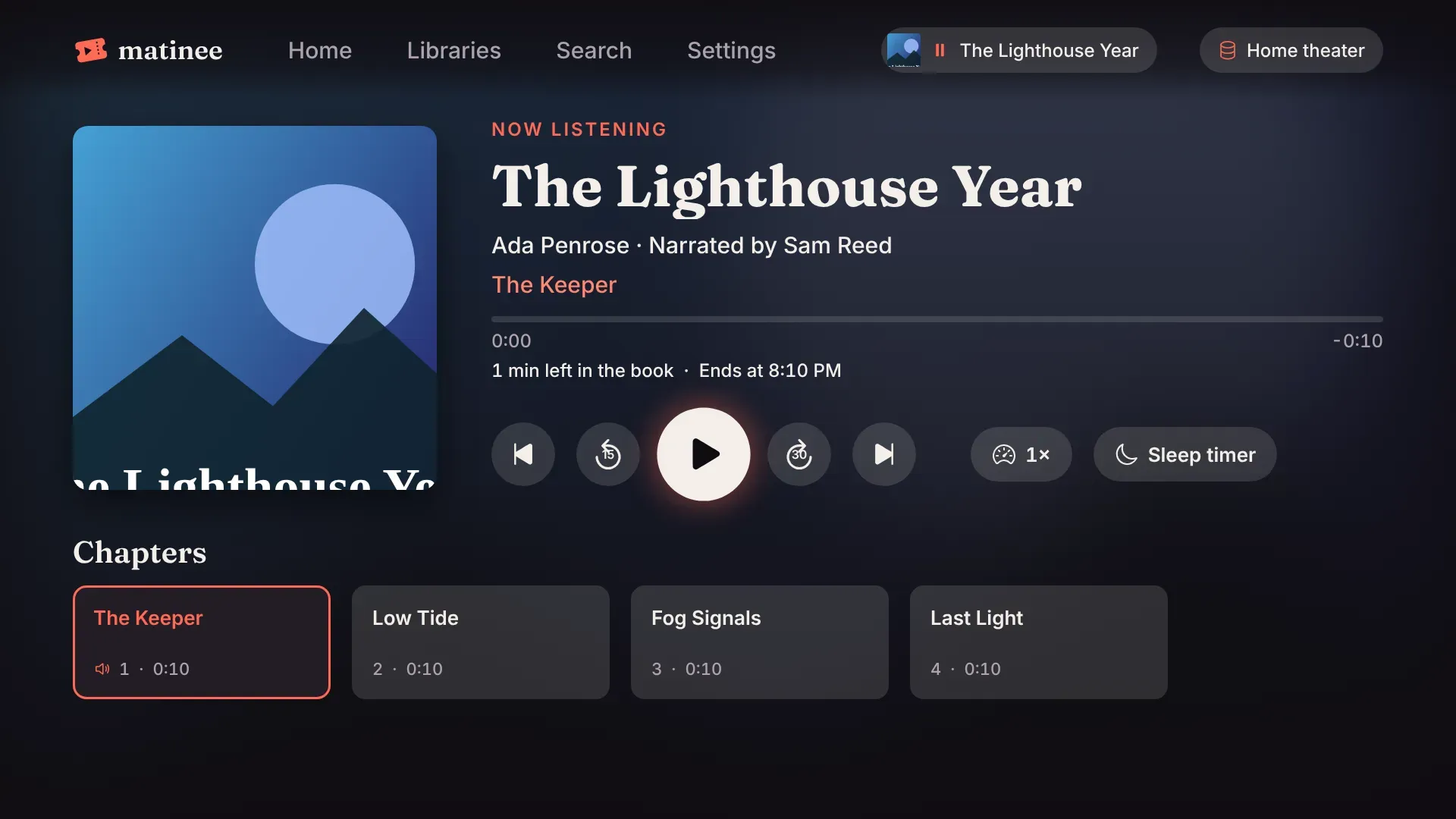
Section titled “On a TV”Apple TV and Android TV have a player made for books too. On a book’s page, Play or Resume starts it where you left off and opens the player; Start over goes back to the beginning. The player has the cover, the chapter playing with how much of it is left, and how long until the end of the book (with the time it ends at, counting the speed in). The buttons, in one row for the remote, are Previous chapter, Back 15 seconds, play and pause, Ahead 30 seconds and Next chapter, then the Speed (0.75× to 3×) and the Sleep timer, which can stop at the end of the chapter. The chapters sit in a row below; select one to play from its start.
From version 1.0.19 you can scrub through the book with the remote, as in the music player: press up from the buttons to the bar, then left and right go back or ahead 10 seconds (hold to go faster). Keep pressing to go past the end of a chapter into the next; the chapter’s name and the time update as you go, and the book moves there once you stop. Select on the bar plays or pauses, and rewind and fast forward on the remote skip 10 seconds from anywhere in the player.
The book keeps playing while you browse, like music: the book shows at the top of the screen next to the server’s name, and selecting it opens the player again. The play/pause button on the remote plays and pauses it from any screen. Your place in the book is kept on the whole book’s clock, so you can carry on from a phone or the browser.
When the server restarts
Section titled “When the server restarts”If the server restarts or updates while you listen, the book doesn’t lose your place. What’s already loaded keeps playing; if it runs out first, a card at the top of the screen says the server is restarting, or can’t be reached, and the book carries on from the same moment once it’s back, at the same speed. After three minutes the player offers Try again. The phone and TV apps do the same.
Series and narrators
Section titled “Series and narrators”Matinee reads who wrote and who reads a book, and the series it’s in, from the tags in its files:
| Tag | Used for |
|---|---|
album |
the book’s title |
album_artist or artist |
the author |
composer or narrator |
the narrators; several can be separated with commas or & |
series and series-part |
the series, and the book’s place in it |
description |
the book’s description |
Without tags, the folder names work: Author/Series/Book 2 - Title/ puts the book second in its series. A desc.txt in a book’s folder gives its description, and a reader.txt its narrators. Covers come from cover.jpg or folder.jpg in the book’s folder, or from a cover embedded in the files, and an author’s photo from author.jpg in their folder.
Covers and author photos
Section titled “Covers and author photos”A book’s cover comes from, in order:
- An image named like the book’s file, such as
The Hobbit.jpgnext toThe Hobbit.m4b. This works for books that share a folder. - A cover in the book’s own folder:
cover.jpg,folder.jpg,front.png, an image with “cover” in its name, or the folder’s only image. Names can be in any case, and.jpeg,.pngand.webpwork too. - The cover embedded in the book’s file, which most
.m4bfiles have. - Open Library, which needs no key, by the book’s title and author.
An author’s photo comes from author.jpg (or folder.jpg) in their folder, or from Open Library. To use only your own files, set MATINEE_OPENLIBRARY=false.
Open Library’s covers are of the printed book, which most audiobook covers are made from. A book is only matched when Open Library has the same title by the same author; notes like “(Unabridged)” are left out of the search.
To look again for missing covers, for example after adding images to book folders, an admin opens Settings → Libraries, finds the audiobook library, and clicks Find artwork.
Picking a cover yourself
Section titled “Picking a cover yourself”An admin can pick a book’s cover by hand: click the cover on the book’s page in the browser, or tap or long-press it in the phone apps. The picker offers Open Library’s covers of the printed editions and Apple’s audiobook covers, or takes the address of an image online, or, in the browser, an image you upload. The cover you pick stays through scans; Use the automatic cover goes back. It works the same as picking an album’s cover.